The deck is a workshop onboarding OpenAI's Codex coding agent for engineers. It opens with a title slide, a workshop overview covering goals, format and client choice, and an agenda of five lightning talks: introduction and setup, understanding agents, using Codex in the software lifecycle, delegating to agents, and how teams use Codex. The middle sections explain the agent loop and context window, compare IDE, app and CLI workflows, and map Codex to each stage from planning through deployment. A section on effective delegation introduces a four-field prompt template and AGENTS.md guidance files. Later slides show team integrations and customer quotes with metrics. It closes with three next steps, a hands-on exercise list and documentation links. Q&A slides separate each section, and many content slides use short bullet points with a few diagrams and tables.
Slides worth studying
Questions about this deck
What does the OpenAI Codex 101 deck say about how the Codex agent loop works?
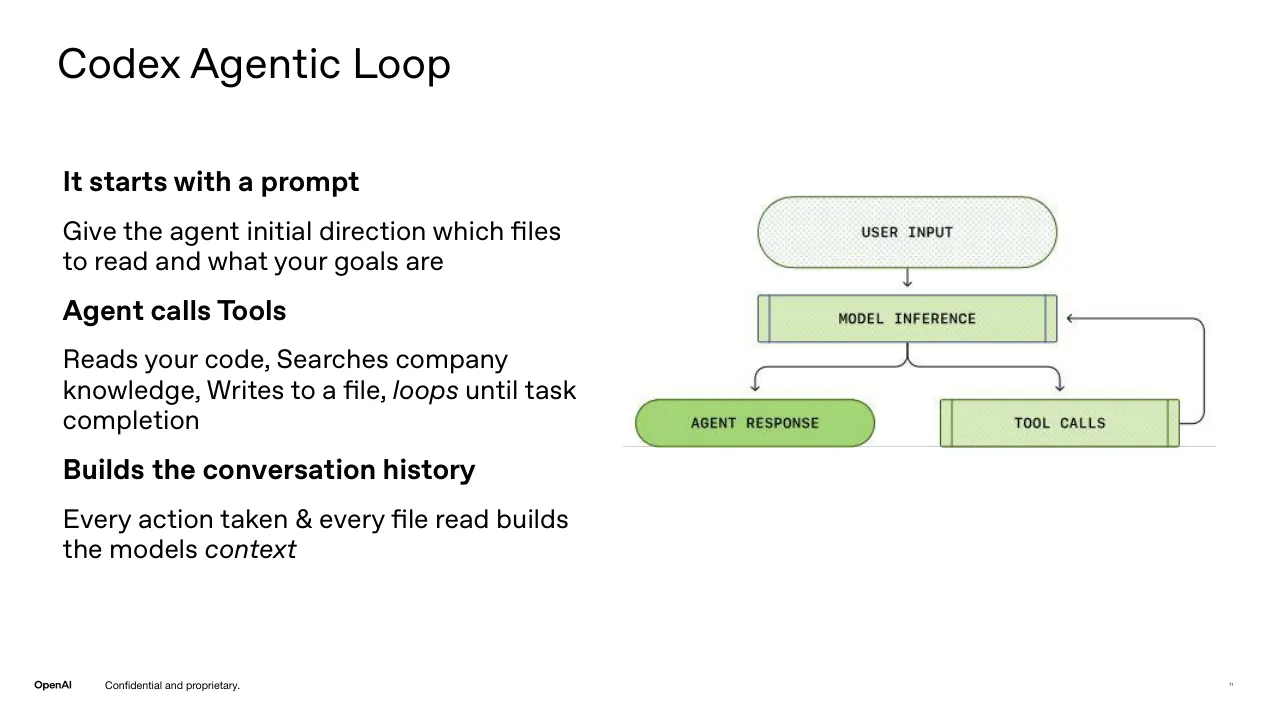
Slide 11 describes the Codex agentic loop, which starts with a prompt that gives the agent initial direction. The agent then calls tools such as reading code, searching company knowledge, and writing to a file, looping until the task is complete. Every action and file read also builds the model's conversation history.
How many slides does the OpenAI Codex 101 deck have, and how is it structured?
The deck has 37 slides. It opens with a title slide and workshop overview, lists five lightning talks on slide 3, and closes with next steps on slide 36 and a Resources slide on slide 37.
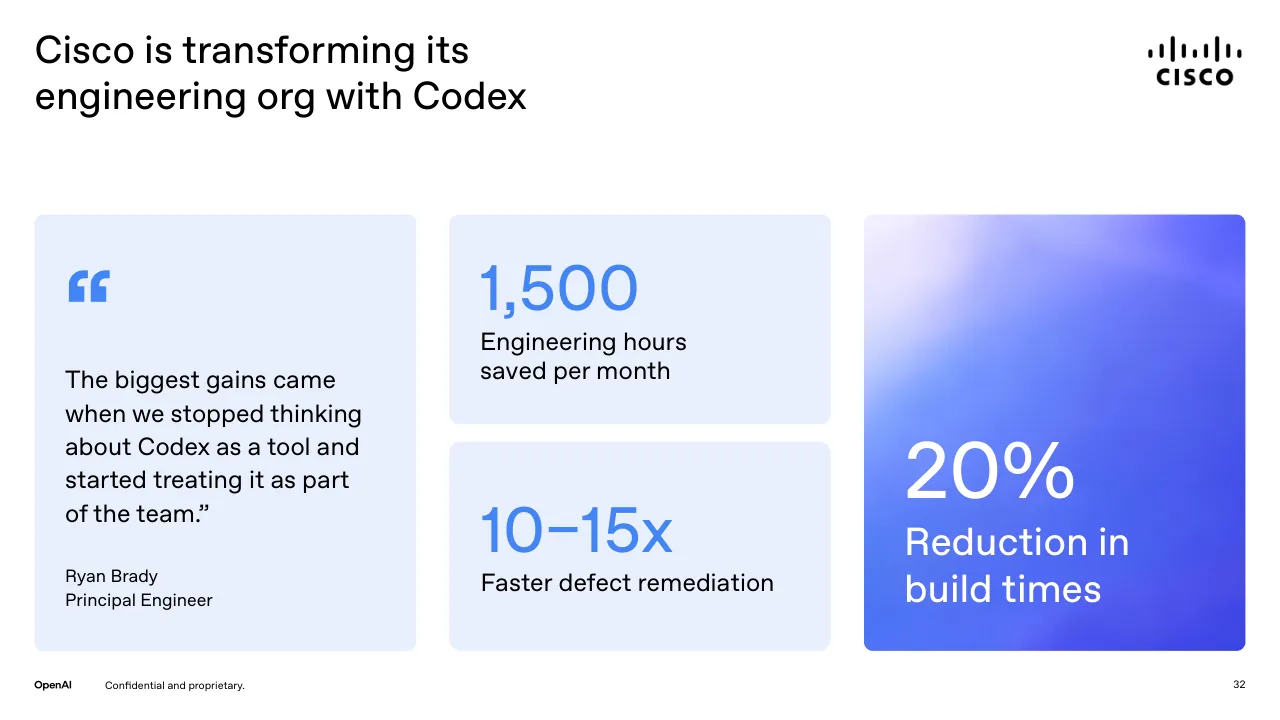
What results does the OpenAI Codex deck report for Cisco?
Slide 32 reports that Cisco saw 1,500 engineering hours saved per month, 10–15x faster defect remediation, and a 20% reduction in build times. These figures are quoted from the slide's Cisco customer case.
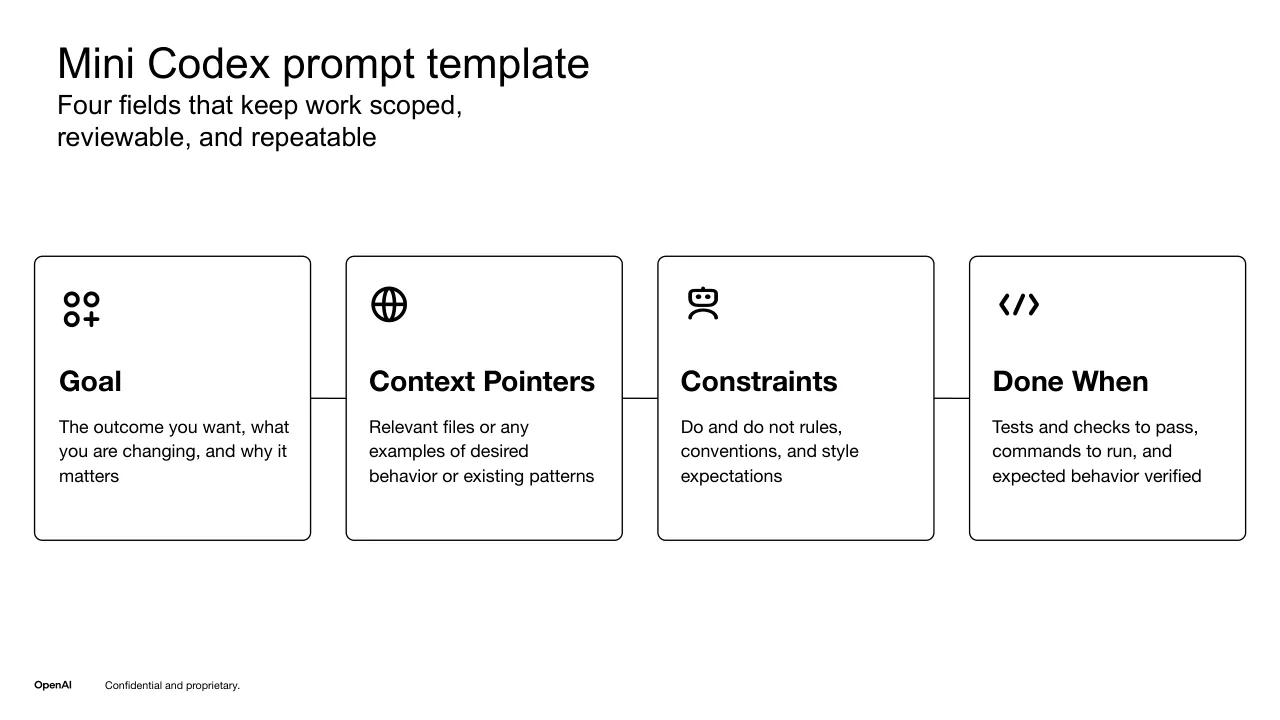
What four fields does the OpenAI Codex deck include in its mini prompt template?
Slide 22 presents a four-field Codex prompt template: Goal, Context Pointers, Constraints, and Done When. It says these fields keep work scoped, reviewable, and repeatable.
Details
- Company: OpenAI
- Type: Course deck
- Industry: Software development
- Pages: 37
More from OpenAI
- OpenAI course deck, London SME AI Accelerator April 2026
- OpenAI course deck, SME AI Accelerator Abilene April 2026
- OpenAI sales deck, 2025
- OpenAI conference talk
All OpenAI decks in the library
Review score: 7 out of 10, Effective
Presentation quality, judged with the SlideDeck Co review heuristic. Ask, evidence and idea merit are not rated here.
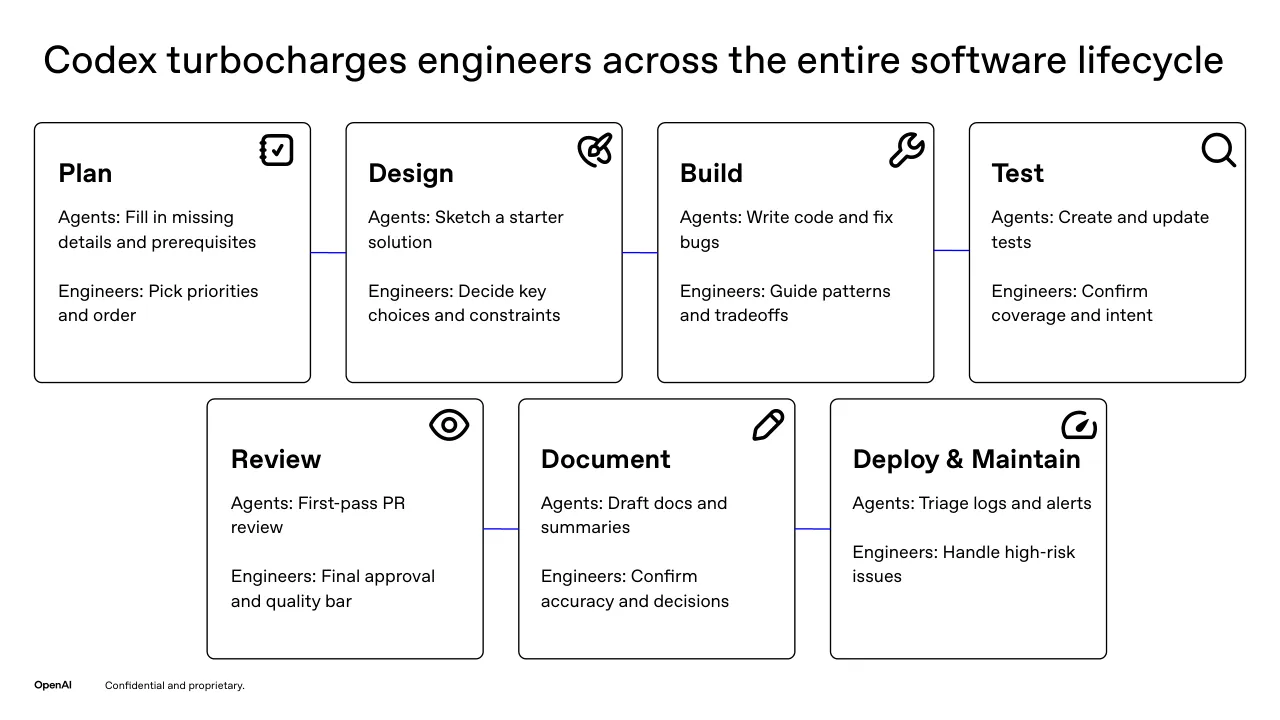
The deck has a clear route for a live workshop: overview, agenda, five lightning-talk sections, a concrete four-field prompt template (22), a lifecycle map of agent and engineer roles (16), and a closing set of next steps and resources (36, 37). Slides are readable with consistent branding, large titles and generous space, and the customer slides (32 to 34) pair quotes with large metrics well. Consequential weaknesses remain: the title slide still shows placeholder text 'Name goes here / Title goes here' and 'Image goes here' (1), four Q&A slides (9, 14, 19, 28) are empty gradient pages that break momentum, and several slides use tiny unreadable screenshots (13, 26, 30) or very small card text (5, 6, 22). Some slides also add little, such as the bare gradient on 9 and the sparse slide 8.
Worth keeping: Keep the section structure with divider slides, the four-card prompt template on 22, the Plan to Deploy lifecycle grid on 16, and the quote-plus-metric layout on 32 to 34.
Most useful repair: Replace the placeholder presenter block on slide 1 with real details, and enlarge or crop the screenshots on 13, 26 and 30 so the point is readable.
What would change the score: Merge or shrink the four repeated Q&A pages, and add a short stated takeaway to the dense text slides 23 and 27 so the audience sees the point rather than reading paragraphs.
Confidence high. 37 of 37 pages inspected on contact sheets, 4 at readable size. Reviewed 2026-11-08. Model-assisted review (claude-sonnet-5-5).
Full text of the slides (37 slides)
Every slide's words and a description of its charts and images, so the deck can be searched and rebuilt. Also available as Markdown.
Slide 1
OpenAI
Codex 101 - Introduction
and Onboarding
Get up and running with
OpenAI’s coding agent
Name goes here
Title goes here
Visuals: Photo/illustration panel at x 24.4%, y 4.8%, w 75.6%, h 90.7% (1920x1080 source, slightly rounded corners): a saturated blue-violet gradient background with soft white-lavender haze at the top-left and deeper indigo at the bottom-right, containing a centred app-icon style graphic at about x 67.3%, y 36.2%, w 19.4%, h 34.6%: a white rounded-square tile with a soft drop shadow beneath it, holding a glossy purple-to-blue cloud-shaped badge with a white terminal prompt symbol (a chevron '>' and a horizontal dash '–'). Lighting is soft and diffuse, full-bleed within its box, not cropped. Small grey circular placeholder at x 1.1%, y 78.8%, w 13.0%, h 13.0% (160x90 source) with faint grey text reading 'Image goes here' on a light grey #EBEBEB disc.
Slide 2
Workshop Overview / ➔ / Goals / ◆ / Get you up and running in Codex / ◆ / Demonstrate Success in an / Agent-Native operating paradigm / ➔ / Format / ◆ / Quick Concepts Overview / ◆ / Concept-Driven Lightning Talk Demos / ◆ / Skill building micro hackathon / ◆ / Q&A / ➔ / You can use any of the Codex App, IDE, or / CLI. The performance is the same, / functionalities of clients differ slightly. We / recommend the app / OpenAI / Confidential and proprietary.
Visuals: Two visuals. (1) A square abstract photograph-style gradient panel, about 51.5% by 91.5% of the slide, with rounded corners. It runs from pale lavender-white at the top-left to saturated periwinkle blue in the middle and deep royal blue at the bottom-right, with soft diffuse light and no recognisable subject apart from the card. (2) A UI card, about 43.8% by 28.8% of the slide, centred on the blue panel and slightly right of centre. It is a white rounded rectangle with a soft dark drop shadow beneath. Inside, a lavender pill labelled 'Merged' in purple, with a purple git-merge branch icon to its left, is followed by '+217' in green and '-196' in red. Its colours are white, lavender #E2D0FB, purple #7B3FE4, green #3E9B4F and red #C93A3A. The card is fully visible and not cropped. There is no chart or table.
Slide 3
Lightning
Talks
01 Introduction and Setup
02 Understanding Agents
03 Using Codex in the SDLC
04 How to Delegate to Agents
05 How Teams are Using Codex
OpenAI
Confidential and proprietary.
3
Slide 4
Approaches to AI coding
Code
complete
Pair
programming
Agentic
delegation
OpenAI
Confidential and proprietary.
Visuals: Three rounded-corner illustrated screenshot cards, left to right. Card 1 (Code complete): a light blue to pale lavender sky-like gradient backdrop with a dark-edged code editor window showing a CSS snippet: line 600 'table {', line 601 'border: 2px solid black;', a grey Copilot suggestion panel reading 'Suggest a lighter variation of this color' and 'Made changes.', a text field 'Ask Copilot or type / for commands', blue 'Accept' and grey 'Discard' buttons, then highlighted lines 602 'background-color: rgb(200, 240, 210);', 603 'border-collapse: collapse;', 604 'margin-top: 50px;', 605 '}', repeated once more. Card 2 (Pair programming): a light blue to lavender gradient backdrop with a dark IDE window showing a GitHub Copilot chat panel on the left (user prompt 'Write a unit test for this function', a Python unittest response with class TestParseExpenses and small text explanation) and a module.py code editor on the right with a Python function parse_expenses and a docstring. Card 3 (Agentic delegation): a saturated blue-violet gradient backdrop with a light sidebar app window showing a faint pixelated/blurred chat response on the right and a heading 'Create a snake game' at top right, with a blurred placeholder area in the centre. All three are full cards with no cropping of the frame; the screenshots are inset into the gradient cards with a soft drop shadow.
Slide 5
One Agent, Everywhere you Work
CLI
Original & Popular UI
Zero-Dependency Install
Powerful Slash Commands
(/compact /fork /new)
Integration with ChatGPT
Apps
Codex App
Easily run tasks in parallel
across multiple workspaces
Better/more flexible diff views
Excellent visual surface for
skills, worktrees &
automations
Great UI for workflows beyond
writing code
IDEs
(VS Code, JetBrains, Xcode)
Fits naturally into IDE-based
workflows
Good for incremental tasks,
quick assistance
Great for ‘chat-style’ usage
Confidential and proprietary.
Visuals: Five app icons, all roughly square with soft shadows. Left card: a dark charcoal rounded-square terminal icon with a white '>_' prompt, at about x 13.9 y 28.3 w 6.4 h 11.3 percent, overlapping the top edge of the card. Centre card: a white rounded-square app icon with a blue-violet cloud shape containing a '>_' terminal prompt, at about x 45.9 y 17.5 w 8.7 h 15.4, overlapping the top edge of the card with a drop shadow. Right card: the VS Code logo (blue stylised ribbon) at about x 71.2 y 27.1 w 7.5 h 13.4; a black square JetBrains-style terminal icon with a white underscore at about x 79.6 y 27.3 w 7.3 h 13.0 with a soft grey shadow; and the Xcode icon (light blue rounded square with a hammer and crossed tools) at about x 86.8 y 26.2 w 8.6 h 15.4. The background is a smooth blue gradient cloud photograph with pale periwinkle top-left and saturated blue bottom-right, full-bleed behind everything.
Slide 6
Installation & Auth
CLI
Codex App
IDEs
Initiate login flow: / codex login / To start a session: codex
openai.com/codex/ / Download / Drag into Applications / Sign in with ChatGPT
Open Extensions Pane / Search “OpenAI Codex” / Install / Sign in with ChatGPT
Confidential and proprietary.
Visuals: Three app icons sit on top of the cards: a dark pixelated CLI terminal icon above the CLI card, a pixelated blue-violet Codex app icon above the centre card, and, above the right card, a blue pixelated VS Code icon, a black terminal icon with a soft shadow, and a blue Xcode icon with a hammer. Inside the CLI card is a dark navy code panel with five numbered lines: 1 npm install -g @openai/codex, 2 blank, 3 # or, 4 blank, 5 brew install --cask codex, with the keywords npm and brew in green. Below the IDE bullets is a dark screenshot of the Codex extension in VS Code showing a Codex logo, the title Codex – OpenAI's coding, an Install/Disable/Uninstall button row, and an Installation panel. The screenshot is boxed with a dark shadow and is not cropped. The background is a blue-violet gradient photograph with soft white cloud-like haze at upper left.
Slide 7
Use Codex on one of your / repos or an open source / repo / Need a repo? A few options / Link: github.com/agentsmd/agents.md / Link: / github.com/greenleaf-oai/3js-follow-along-demo / (Advanced) Link: github.com/openai/codex / OpenAI / Confidential and proprietary. / 7
Visuals: Full-height right-hand panel (x 51.3% to 100%, full slide height) with a soft blue-violet gradient, lighter at the top-right corner. Centred on this panel is a tall rounded-rectangle card (x 56.0%, y 6.2%, w 38.9%, h 80.0%) in deep blue with a thin grey outline. The card's top third is a pale lavender-white gradient sky; below it a deep blue (#2440B8) body begins with a flat-topped, slightly peaked horizon shape. Three small dark indigo squares (#2D1F9E) are stacked diagonally near the upper middle, one larger dark indigo cube (#2D1F9E) sits in the middle-right, and a white rounded-square app icon (about 14% of card width) sits in the lower-middle with a violet-blue cloud-like symbol containing a white dash and chevron. The composition is a centred, unbroken card with no cropping; the image is boxed by the card's rounded corners over the gradient.
Slide 8
Send your first prompt to Codex
take a look at the last month of commits and come up with a list of top features we can build next
GPT-5.3-Codex
Extra High
Local
Default permissions
master
OpenAI
Confidential and proprietary.
8
Visuals: One photographic screenshot of a dark Codex app prompt box, placed at 6.1%, 34.0%, 87.9% by 32.1% of the slide, with no crop or border beyond its own rounded corners. Subject: a chat-style input composer. The outer panel is near-black (#161616) with large rounded corners (about 6% of its height). Inside it sits a slightly lighter (#1E1E1E) rounded input field with a thin grey (#333333) outline, occupying about 7.9% to 92.3% of the slide width and 38.2% to 57.8% of its height. Inside the field, the typed prompt 'take a look at the last month of commits and come up with a list of top features we can build next' is set in light grey-white (#F0F0F0) sans-serif about 2.2% of slide height, followed by a thin white text cursor at its end. Below the prompt, along the bottom of the field, are grey (#8A8A8A) controls: a plus icon at the left, the model selector 'GPT-5.3-Codex' with a downward chevron, and the effort selector 'Extra High' with a downward chevron; at the right are a grey microphone icon and a white circular send button (#FFFFFF, about 4.5% of slide width) containing a black up-arrow. Below the field, outside it but inside the dark panel, are grey controls: a laptop icon with 'Local' and a chevron, a shield-style icon with 'Default permissions' and a chevron, at the right a git-branch icon with 'master' and a chevron, and a small grey loading spinner ring at the far right. Lighting is flat, even UI lighting with no shadows. Dominant colours are near-black and grey with a white send button. The image is a screenshot, not a photograph. It is not cropped and is not full-bleed. A yellow-green (#EEFF41) fill is recorded in the file at the same box as the screenshot; in the rendered slide that area reads as the dark panel with white space around its rounded corners.
Slide 9
Q&A
OpenAI
Visuals: One photograph-like abstract image: a soft, out-of-focus blue and violet gradient surface with a diagonal light-to-dark transition running from the upper-left (pale white-blue, fine streaked texture) to the lower-right (saturated indigo-blue #2E35D6 and violet). The upper-right edge shows a light lavender highlight. The image is boxed (not full-bleed) with small rounded corners, full colour, no overlay, no border, no text. The OpenAI wordmark in black is a logo at top-right.
Slide 10
OpenAI
Understanding
Agents
What is the Agent Loop?
Visuals: Photograph or illustration: a soft gradient background panel with a rounded-corner rectangle, shifting from pale lavender-white at top-left through periwinkle to saturated blue and indigo at bottom-right, with a faint purple glow in the lower centre. Centred on it is a single app-style icon: a light grey-white rounded-square tile (about #F2F2F5) holding a glossy blue-to-violet scalloped cloud shape (violet #B07CF0 at top fading to blue #2F3FE0 at bottom) with a white chevron '>' and a white horizontal dash inside, like a terminal prompt. The icon is not cropped, has a soft drop shadow, and sits in the middle of the panel. The panel has no overlay or tint beyond the photo itself.
Slide 11
Codex Agentic Loop
It starts with a prompt
Give the agent initial direction which files
to read and what your goals are
Agent calls Tools
Reads your code, Searches company
knowledge, Writes to a file, loops until task
completion
Builds the conversation history
Every action taken & every file read builds
the models context
USER INPUT
MODEL INFERENCE
AGENT RESPONSE
TOOL CALLS
OpenAI
Confidential and proprietary.
11
Visuals: One flow diagram, boxed by no frame, on white. Shapes: a top pill-shaped (stadium) box labelled USER INPUT in monospace capitals, filled with a very pale green dotted/stippled tint and a dark olive-green outline; below it a down arrow connects to a rectangle labelled MODEL INFERENCE, pale green fill (#D9EFC4 approx.) with thin blue-grey vertical bars at its left and right ends and a blue-grey outline; from the bottom of MODEL INFERENCE a connector splits into two elbow arrows pointing down: the left one ends in a green pill-shaped box labelled AGENT RESPONSE filled solid green (#A3D977 approx.) with a dark green outline, the right one ends in a pale green rectangle labelled TOOL CALLS with blue-grey end bars. From the right side of TOOL CALLS a line runs right, turns up and returns left into MODEL INFERENCE with an arrowhead pointing left at its right edge, forming a feedback loop. A thin light grey horizontal baseline runs under AGENT RESPONSE and TOOL CALLS. No chart, table, photo or logo.
Slide 12
What Is Context?
Why does it matter?
The Agent’s Working Memory
Context is the total information an agent has to complete its task
The Context Window
Codex can hold hundreds of documents in context at once (400-600 pages of text)
Why it Matters
Focused context leads to safer, more accurate, and more consistent agent results
OpenAI
Confidential and proprietary.
12
Visuals: One diagram, a dark flowchart titled 'Context Building in an LLM Agent' inside a rounded dark card (800 by 1000 px image, with a second 512 by 768 px copy of the same artwork at the same position). Title is top-left in white sans-serif, with an OpenAI knot logo top-right. Under it a legend row reads 'Role:' followed by three green filled circles labelled System, Developer and User. The flow is a vertical chain of shapes: a green-filled rectangle labelled 'Initial prompt' at the top, with a small green leader line from a left label 'Initial prompt' into it; a short downward arrow connects it to a dashed rounded rectangle enclosing a stack of three outlined boxes labelled '"type": "reasoning"', '"type": "function_call"' and '"type": "function_call_output"' (the last wrapped as '"type": "function_' / 'call_output"'); a bracket on the right of the dashed group is labelled 'Full Context'; a downward arrow leads from the stack to a green rectangle 'Next user message' inside the dashed group; a downward arrow leaves the dashed group to an outlined rectangle 'Tool Call Output' with a small green hammer icon at its right end; a thin grey loop line runs down the left side from the Initial prompt area back into the Tool Call Output box; a short downward arrow leads from Tool Call Output to a second green rectangle 'Next user message' at the bottom. Green (#7AC142-ish) for filled role and message boxes, white outlines and white text elsewhere. Composition is a centred vertical portrait, uncropped, with flat even lighting on the dark background.
Slide 13
Codex Manages Context / For You
Intelligent Context Compression
Auto compaction runs in the turn loop / when token usage crosses a / model-specific threshold ~90%
OpenAI
Confidential and proprietary.
I'll now zoom into listener-attach and request/response wiring sections in CodexMessageProcessor since those are often prone / to lifecycle issues.
Explored 1 file, 3 searches
I identified several likely review targets; I'll quickly inspect approval/task cleanup and state handling files to confirm whether any / of these map-based state can leak on cancellation or shutdown.
Explored 1 file, 1 search
Context automatically compacted
Worked for 4m 3s
Pulled the latest main and did a broad review of this codebase's major areas (especially the app-server, core, and related / message/turn handling flow), then focused on the largest runtime path ( initialize → message processing → thread/turn / execution → outgoing callbacks ).
1. [P1] Hard panic on unreachable-but-invalid protocol path in CodexMessageProcessor
File: codex_message_processor.rs (lines 488-490)
process_request panics on ClientRequest::Initialize with "Initialize should be handled in / MessageProcessor" .
Visuals: One photograph-style screenshot of a dark code-assistant transcript window, boxed with rounded corners, placed on the right panel. It shows a dark charcoal (#1A1A1A) chat pane with light grey monospace and sans text: a paragraph about wiring sections in CodexMessageProcessor, a grey line 'Explored 1 file, 3 searches', a paragraph about reviewing approval/task cleanup files, a grey line 'Explored 1 file, 1 search', a divider labelled 'Context automatically compacted' with a small icon, a divider labelled 'Worked for 4m 3s', a summary paragraph with inline code chips (main, app-server, core, initialize, message processing, thread/turn execution, outgoing callbacks), a numbered item '[P1] Hard panic on unreachable-but-invalid protocol path in CodexMessageProcessor', and two bullets: a blue hyperlink 'codex_message_processor.rs (lines 488-490)' and a line about process_request panicking on ClientRequest::Initialize. The text is cut off at the bottom of the window. The window is framed by a thin dark grey edge and a soft shadow, with a faint horizontal bar at the bottom. The right panel behind it is a soft gradient from lavender-white at the top right to saturated blue-violet (#5B6CF2) in the centre and bright blue (#3F6BF0) at the bottom. The screenshot is not cropped and sits fully inside the panel. There are no logos or icons other than the OpenAI wordmark in the footer.
Slide 14
Q&A
OpenAI
Visuals: One photograph-like abstract image in a rounded rectangle, spanning most of the lower slide. Subject: a soft-focus, abstract blur of light and colour, with pale white-lavender and light blue on the upper left fading diagonally into saturated royal blue and violet on the right and bottom right; a faint streaked texture is visible on the left. Composition: landscape crop, full frame inside the rounded box, no visible subject. Lighting: soft, diffuse glow from the upper left. Dominant colours: #E8E6FF, #8FB4FF, #4A7CFF, #3B3BD9, #2E2ED6. The image is boxed, not full-bleed, with small rounded corners and no overlay or border. Next to the Q&A title the OpenAI logo is a black wordmark, no icon.
Slide 15
OpenAI
Using Codex in the
SDLC
Ways to leverage Codex in your work
Visuals: One photograph-style abstract gradient image in the right column, boxed with small rounded corners. It shows soft, blurred, fluid shapes with no recognisable subject. Composition is portrait, full-frame within its box, not cropped to any figure. Lighting is diffuse and glowing. Dominant colours: pale lavender-white at the top-left corner (about #E8E6FB), periwinkle blue (about #6F8BFF) in the centre, saturated royal blue (about #3B5BFF) in the middle-left, and deep indigo-violet (about #3434D8) in the lower-right corner. No overlay or tint beyond the gradient itself. The OpenAI wordmark in black is the only logo.
Slide 16
Codex turbocharges engineers across the entire software lifecycle
Plan
Agents: Fill in missing details and prerequisites
Engineers: Pick priorities and order
Design
Agents: Sketch a starter solution
Engineers: Decide key choices and constraints
Build
Agents: Write code and fix bugs
Engineers: Guide patterns and tradeoffs
Test
Agents: Create and update tests
Engineers: Confirm coverage and intent
Review
Agents: First-pass PR review
Engineers: Final approval and quality bar
Document
Agents: Draft docs and summaries
Engineers: Confirm accuracy and decisions
Deploy & Maintain
Agents: Triage logs and alerts
Engineers: Handle high-risk issues
OpenAI
Confidential and proprietary.
Visuals: Seven outline icons, each in the top-right corner of its card, all drawn in black line art with about 0.2% stroke: Plan is a notepad/clipboard with a checkmark; Design is a pen-nib over a circle (drawing tool); Build is a wrench; Test is a magnifying glass; Review is an eye; Document is a pencil; Deploy & Maintain is a speedometer/gauge. Five short blue (#1F1FFF) horizontal lines join adjacent cards: Plan to Design, Design to Build, Build to Test, Review to Document, Document to Deploy & Maintain. The OpenAI wordmark in bold black sits at the bottom left as a logo.
Slide 17
Time to build together
Send a read-only prompt with @ mention
Build a simple feature (+ run tests)
Build a harder feature using “plan mode”
Add image context
Review code before deploying
Document changes
Let’s build
codex
Please review my changes and develop a effective unit testing strategy for these changes.
Please list out all of the edge cases that need to be tested along with anything we may have missed
GPT-5.3-Codex
High
IDE context
Local
Custom (config.toml)
daniels-cai/skill-duplicatio...
Visuals: Screenshot of a dark application window (Codex IDE) shown inside the right panel. The window is a near-black (#1A1A1A) rounded rectangle with a thin light-grey edge and soft shadow, spanning about 57% to 92% of slide width and 4% to 96% of slide height. At the top centre is a white outline cloud-shaped logo containing a terminal prompt symbol '>_' (about 0.5 to 0.7 of slide height in size). Below it, centred, the white text 'Let's build' with 'codex' in grey beneath it with a small down chevron. A rounded input box near the bottom holds the prompt text in white, and beneath it a toolbar with a plus icon, a 'GPT-5.3-Codex' dropdown, 'High' dropdown, a blue 'IDE context' label with a sparkle icon, a microphone icon and a white circular up-arrow send button. Below that is a status bar with 'Local' dropdown, 'Custom (config.toml)' dropdown with a gear icon, and a git branch 'daniels-cai/skill-duplicatio...' dropdown. The screenshot is full, not cropped, boxed as a rounded window on a gradient background. The gradient runs from saturated blue #4B5BEA at left to lighter violet and near-white #F2F0FF at top-right and bottom-right #3D6BF0 blue; overlay none.
Slide 18
Delegate to codex, and free yourself to think
more deeply about architecture and design
OpenAI
Confidential and proprietary.
18
Visuals: One photographic-style background image covering the full slide (1920 by 1080 px), a soft blurred gradient of saturated blue and violet on the left and bottom, fading to pale lavender and white at the top centre and right with faint streaky highlights. One app icon, 200 by 200 px, centred in the card at about x 43.8%, y 48.4%, 12.6% by 22.4% of the slide: a rounded-square tile with a near-white grey (#F3F3F5) glossy surface and a thin grey outline, containing a cloud-shaped badge with a violet-to-blue gradient (top #A88BF0 to bottom #3D2EF5) and a glossy highlight, with a white chevron '>' and a white horizontal dash '_' inside it, reading as a terminal prompt. The icon is not cropped and has no visible drop shadow.
Slide 19
Q&A
OpenAI
Visuals: One photograph-like abstract image in a rounded rectangular box spanning the content width below the header. It shows a soft, blurred close-up of a glossy surface with diagonal streaks: pale white and lavender at upper left, shading into bright cornflower blue across the centre, and deep indigo-violet at lower right and upper right. Lighting is soft and diffuse with a bright highlight near the top centre-right edge. Composition is landscape, full-width, unobstructed, with no overlay or tint. The image has small corner radii and is not cropped to a circle. No logos or icons other than the OpenAI wordmark.
Slide 20
OpenAI / How To Effectively / Delegate to Agents / Become a power user fast / Codex wrote 85% / of the projects’ code
Visuals: One illustration in the right panel: a white rounded-corner card (about 1.5% of slide width corner radius) holding a 6-column by 5-row grid of square tiles with rounded corners. Each tile is either a light-blue tile (#A9C8F5 to #B3D0F7) with a purple-to-magenta terminal-prompt glyph (a small cloud-like shape containing a '>_' prompt symbol) or a plain light-green tile (#C6F0C2) with a thin darker-green border. Row 1 reads blue, green, blue, green, blue, green. Row 2 is all blue. Row 3 reads blue, blue, green, blue, green, blue. Row 4 reads blue, blue, green, blue, green, blue. Row 5 reads blue, green, blue, green, blue, green. That gives 20 blue tiles and 10 green tiles. The grid is evenly spaced with generous white padding inside the card. The blue panel behind it is a soft gradient from pale lavender #E9E7FB at upper left through violet #7B7CF0 to royal blue #2F3FD8 at lower right, with a slightly lighter blue haze at mid-left, and no photograph content. The panel is flat-lit with no visible light source, is not cropped inside the slide, and has no overlay beyond the gradient. The OpenAI logo is a black wordmark, not a separate icon.
Slide 21
What power users know
01 Instead of a perfect prompt, build perfect context
02 Faster validation means better outcomes
03 Use the agent to learn, not vibe code
OpenAI
Confidential and proprietary.
21
Slide 22
Mini Codex prompt template
Four fields that keep work scoped,
reviewable, and repeatable
Goal
The outcome you want, what
you are changing, and why it
matters
Context Pointers
Relevant files or any
examples of desired
behavior or existing patterns
Constraints
Do and do not rules,
conventions, and style
expectations
Done When
Tests and checks to pass,
commands to run, and
expected behavior verified
OpenAI
Confidential and proprietary.
Visuals: Four identical rounded-corner outlined rectangles in a horizontal row, each with an icon above a heading and a short description. Thin black connector lines run horizontally between adjacent boxes at mid-height (y about 55.3%), joining box 1 to box 2, box 2 to box 3, and box 3 to box 4. Box 1 icon: a line icon of four small open circles in a 2x2 grid with a plus sign in the bottom-right position. Box 2 icon: a globe line icon with a vertical ellipse and horizontal and vertical meridian lines. Box 3 icon: a line icon of a robot head with a rectangular face showing two dot eyes above a rounded body outline. Box 4 icon: a code icon showing a left chevron, a forward slash, and a right chevron. All icons are solid black line glyphs of similar stroke weight. No photographs or charts.
Slide 23
Prompting: Why it matters + how to do it well
A good prompt sets scope, constraints, and success criteria so Codex can execute predictably
Keep it minimal: goal + constraints + “done”: Codex performs best with a clear target and a finish line, not a long narrative. Tell Codex what not to do when needed
Paste the full stack trace when debugging: Include the error, repro steps, and environment details so Codex can pinpoint root cause faster
Bake in verification: Specify how you will validate (tests, lint, build). If it cannot run them, it should tell you exactly what to run and what to look for
Use open ended prompts intentionally: Ask for options, tradeoffs, risks, and recommended approaches when you want guidance, not implementation
Provide clear code pointers with @ mention: Reference the relevant files in the codebase to keep edits scoped and accurate
Resource: developers.openai.com/codex/prompting/
23
Confidential and proprietary.
OpenAI
Slide 24
Adding AGENTS.md helps make Codex smarter
Codex starts each run with limited project knowledge
AGENTS.md makes your conventions and workflows load automatically
Result: more consistent edits, fewer retries, safer changes
Use /init to generate a starter AGENTS.md
AGENTS.md
A simple, open format for guiding coding agents.
Codex from OpenAI
Amp
Jules from Google
Cursor
Factory
RooCode
Visuals: One illustration, a rounded-corner screenshot-style graphic in the right column. Subject: a presentation card titled 'AGENTS.md' with the subtitle 'A simple, open format for guiding coding agents.' and a 3-by-2 grid of tool logos with labels: row 1 Codex (from OpenAI, terminal-prompt icon in a dark outlined circle), Amp (dark stacked chevron-stripe mark), Jules (from Google, dark octopus-like mark); row 2 Cursor (grey faceted 3D cube), Factory (dark asterisk/flower-like mark), RooCode (dark kangaroo silhouette). Composition: the white card is centred inside a larger sky-blue frame, with the card occupying about 55% to 90% of the frame width and 32% to 68% of its height. Lighting: flat, even. Dominant colours: sky blue #4DC8FF frame, white card #FFFFFF, yellow-green #C8D92E and violet #9B6BE0 blurred glow blobs, icons dark slate #2B3445. The frame is not cropped, has no border, and has a soft drop shadow beneath it. Overlay: faint white monospace code fragments (for example 'eal wi', 'hape in', 'tensorfl', 'k e', 'ax') are scattered over the blue frame edges at low opacity. The white card is a rounded rectangle with a faint soft shadow.
Slide 25
How Codex discovers guidance
Discovery follows this precedence order
Global (~/.codex/AGENTS.md)
• Codex uses only the first non-empty file at the
home directory level
• Keep concise and use for personal defaults
Project (AGENTS.md)
Directory (AGENTS.md)
• Starts at the project root (usually Git root) and
walks down to the current working directory
• Concatenates files from the root down
• Files closer to current directory override earlier
guidance for specific context and guidance
Visuals: One image: a monospace file-tree screenshot, about 50.7% of slide width by 44.7% of slide height, placed at x 1.6%, y 29.8%. It shows a directory tree with a book-style file icon beside each file. Top row: AGENTS.md with the annotation 'Repository expectations', in a rounded light-green bordered bar. Below it, services/ (chevron expanded) containing payments/ (expanded) with AGENTS.md annotated 'Ignored because an override exists' (plain), AGENTS.override.md in a rounded light-green bordered bar annotated 'Payments service rules', and README.md (plain). Then search/ (expanded) containing AGENTS.md (plain) and a generic file icon followed by '…'. Green highlights (#2E9E4F text, #F3F9F3 fill, #8CC98F border) mark the two active files. The tree is set on a white background with grey tree connector lines. Icons: a globe outline icon (black, about 2.6% wide) beside the Global heading; a folder outline icon (black, about 2.6% wide) beside the Project heading; a folder outline icon (black, about 2.6% wide) beside the Directory heading. A thin grey horizontal rule (#8A8A8A, about 0.2% high) spans the right column at about 44% height.
Slide 26
What AGENTS.md typically includes
Common sections:
● Repo map: key directories, important modules
● How to run the project: install, build, test, lint
● Engineering guardrails: conventions, PR expectations,
“do not” rules, security constraints
● How work gets verified: what “done” means and how
to validate it
Tip: You can always ask Codex to do a retrospective and
update the Agents.md for you to avoid future mistakes or
get to an end result faster
Visuals: One screenshot of a code document (sample AGENTS.md file) in a white rounded panel with a thin light grey border and soft shadow, placed at the right and cropped by the right slide edge. The monospace text reads: '# Sample AGENTS.md file' / '## Dev environment tips' / '- Use `pnpm dlx turbo run where <project_name>` to jump to a package instead' / '- Run `pnpm install --filter <project_name>` to add the package to your works' / '- Use `pnpm create vite@latest <project_name> -- --template react-ts` to spin' / '- Check the name field inside each package's package.json to confirm the right' / '## Testing instructions' / '- Find the CI plan in the .github/workflows folder.' / '- Run `pnpm turbo run test --filter <project_name>` to run every check define' / '- From the package root you can just call `pnpm test`. The commit should pass' / '- To focus on one step, add the Vitest pattern: `pnpm vitest run -t "<test na' / '- Fix any test or type errors until the whole suite is green.' / '- After moving files or changing imports, run `pnpm lint --filter <project_na' / '- Add or update tests for the code you change, even if nobody asked.' / '## PR instructions' / '- Title format: [<project_name>] <Title>' / '- Always run `pnpm lint` and `pnpm test` before committing.' Inline code spans have light grey-blue highlight chips. Dominant colours: black monospace text on white and pale grey-blue chips. The image is cropped at the right edge of the slide and at the right edge of the panel.
Slide 27
AGENTS.md best practices
Keep it brief and actionable
Commands, paths, rules, and pitfalls. Skip
generic explanations. Most of OpenAI’s
AGENTS.md files are less than 100 lines
Point to task-specific .md files
Reference supporting markdown (.md) files in
main Agents.md for specific workflows and tasks:
- Plans.md for planning general large tasks
- Code_review.md for code review instructions
- Architecture.md for changes that require
architecture modifications
OpenAI
Confidential and proprietary.
Visuals: Two line icons, both black single-weight outline strokes with rounded joins. (1) A magnifying glass at x 6.2%, y 37.3%, about 2.2% wide by 4% high, placed left of the heading 'Keep it brief and actionable'. (2) A open folder outline at x 52.3%, y 32%, about 2.2% wide by 4% high, placed left of the heading 'Point to task-specific .md files'. The OpenAI wordmark in bold black sans-serif at bottom left, about 3% wide by 1.4% high. No photographs, charts or tables.
Slide 28
Q&A
OpenAI
Visuals: One photograph-style abstract image in a rounded rectangle, occupying the lower part of the slide. Subject: a soft-focus, blurred abstract surface with light streaks, showing a diagonal transition from pale white-lavender at the upper left through light sky blue to saturated blue and violet at the right and bottom right. Composition: landscape crop, full image visible within a box with slightly rounded corners, no overlay. Lighting: soft, diffuse, luminous highlights at upper left and a bright sheen at top right. Dominant colours: white, periwinkle #A9B8F5, royal blue #4F6BEA, indigo #2F34D6. The OpenAI logo is a black wordmark, not an image element.
Slide 29
OpenAI
How Teams are
Using Codex
Understand the art of the
possible
Visuals: One photograph-style abstract image on the right. Subject: a soft, out-of-focus gradient with no people, objects or text. Composition: portrait-oriented rectangle, full frame, with small rounded corners, boxed rather than full-bleed. Lighting: diffuse and even. Dominant colours: pale lavender-white at the upper left (about #EEF0FD), periwinkle blue (about #6F8DF5) through the centre, royal blue (about #4A5EF0) at the lower left, and violet-indigo (about #3B3FD9) at the lower right. The image has no overlay or tint and is not cropped in any visible way. Also one OpenAI wordmark logo at top left, in black (#000000).
Slide 30
Codex is deeply integrated with team workflows
Code Review
Auto and reactive code reviews to help
accelerate the review process and prevent
issues in production
Slack and Linear Mentions
Tag @Codex in a Slack channel or Linear
issue and it will gather context, choose the
right environment, and answer with a link
to the completed task
Codex SDK
Build your own integrations with the Codex
SDK. Auto-fix CI failures or kick off root-cause
analysis when an incident is declared
OpenAI
Confidential and proprietary.
30
Visuals: Three screenshot-style product images, left to right. (1) A code review view on a white card showing file path components/theme-provider.tsx, a green-highlighted diff with added lines 17 to 30 containing useEffect, localStorage, and classList.toggle code, followed by a bot comment chatgpt-codex-connector titled [P1] Prevent theme persistence effect from undoing saved dark mode with a paragraph of body text and a thumbs up reaction counter showing 1. (2) A Slack thread on a white card with Greg Brockman, Han Lu, Steve Lee and Codex messages, a code block reading still waiting for /root/code/openai/lib/strawberry, a 33 replies divider, a Codex summary with bullet points and a Testing line showing a green check and SKIP_TOR, and a View task link. (3) A dark terminal window with red, yellow and green traffic-light dots at top left, showing a YAML workflow named Codex Auto-Fix CI on Failure with keys on, workflow_run, jobs, auto-fix, and steps using openai/codex-action@main and a commit-message string in yellow. All three are uncropped rectangles with small corner radii and soft shadows, sitting on the gradient band. No logos besides the OpenAI wordmark in the footer.
Slide 31
What we’ve seen with OpenAI’s Engineers
●
Some teams are entirely “hands off” - they
prompt everything and have Codex write all
code
●
Codex reviews 100% of PRs internally
●
Agents work proactively in the background
●
Early versions of 5.3-Codex debugged its own
training runs
OpenAI
Confidential and proprietary.
31
Visuals: One image on the right, placed as a single raster image (388 by 359 pixels, not a photograph), boxed with square corners and no border. Its top part shows the black sans-serif heading 'How OpenAI' / 'uses Codex' on white, and below it a blurred pastel gradient panel. The gradient runs from sky blue at the left and bottom through lavender and violet in the centre, to yellow-green, orange and pink at upper right, with faint monospace code fragments in pale green and white scattered across it (for example fragments such as 'def softmax', 'reduce', 'axis=', 'dynamic', 'return'). Centred over the lower part of the gradient is a white rounded card with a soft shadow containing a light-lavender pill with a purple git-merge branch icon and the purple text 'Merged', followed by green '+217' and red '-196' values. No chart, table or logo other than the footer wordmark.
Slide 32
Cisco is transforming its
engineering org with Codex
“
The biggest gains came
when we stopped thinking
about Codex as a tool and
started treating it as part
of the team.”
Ryan Brady
Principal Engineer
1,500
Engineering hours
saved per month
10–15x
Faster defect remediation
20%
Reduction in
build times
OpenAI
Confidential and proprietary.
32
Visuals: Four rectangular panels and one logo. (1) Cisco logo, top-right: the black Cisco wordmark with its bar-pattern symbol above the letters CISCO, set on white. (2) Left quote card: light blue rounded rectangle holding a large blue opening quotation mark, a five-line quote from Ryan Brady, and his name and title. (3) Centre top card: light blue rounded rectangle with the stat 1,500 in blue and the label Engineering hours saved per month. (4) Centre bottom card: light blue rounded rectangle with the stat 10–15x in blue and the label Faster defect remediation. (5) Right tall card: a full-card photograph-style gradient fill with soft blurred blue and violet tones, lighter lavender at the top-left corner and deeper indigo-blue at the bottom-right. It has no visible subject, is not cropped to a photo, and carries the white stat 20% and label Reduction in build times over its lower part. No charts or tables.
Slide 33
Datadog ships more reliably
with Codex Code Review
DATADOG
“
Codex changed my mind for what code review should
be. It’s not about replicating our best human
reviewers. It's about finding critical flaws and edge
cases that humans struggle to see when reviewing
changes in isolation.”
Brad Carter
Engineering Manager at Datadog
22%
of past incidents had risks
Codex flagged
1,000+
DataDog engineers
using Codex weekly
Confidential and proprietary.
33
Visuals: Four non-text visual items. (1) Blue gradient image (1920 by 1080 px) occupying the right portion of the slide from about x 27.5% to the right edge and y 0% to about 94%; its blue gradient, from deep indigo #4F5BE0 at lower left through royal blue #4285F4 to pale periwinkle #C9D6FB at upper right, is visible behind the '22%' card. (2) Blue quotation mark glyph in #4285F4, a heavy sans-serif double quote, at top-left of the left card. (3) DATADOG logo in black: a stylised dog head inside a rounded black square outline on the left, with the bold wordmark 'DATADOG' to its right. (4) OpenAI wordmark in black, small bold sans-serif, bottom-left in the footer. No charts, tables or photographs.
Slide 34
Rakuten fixes issues twice as fast
with Codex
Rakuten
“
We don’t just care about generating code quickly. We
care about shipping safely. Speed without safety is
not success. Our role is not to check every line of
code anymore. Our role is to define clearly what we
want and establish how to verify it.
Yusuke Kaji
General Manager of AI at Rakuten
50%
Reduction in Mean Time to
Repair (MTTR)
OpenAI
Confidential and proprietary.
Visuals: One photograph of a man in a grey crew-neck sweater and glasses, seated with hands clasped and smiling slightly, in a warm dimly lit room with wooden shelves, potted plants, a red bowl, stacked books and a small lamp behind him. It is boxed with slightly rounded corners, warm brown and charcoal tones, soft ambient lighting, and framed at medium shot with the subject centred. A blue quote glyph (“) sits above the quote as an icon, in #4285F4. A Rakuten wordmark logo in dark charcoal #231F20 appears top-right. A blue statistic panel with a diagonal gradient from deep blue #4B67F0 at the lower left to pale periwinkle #B8CCFB at the upper right holds the large white figure 50%. A placed 1920 by 1080 image covers the full slide area at the position listed, but it shows no visible content on the rendered slide. The OpenAI wordmark appears bottom-left in black.
Slide 35
Shipping Sora in / 28 days with Codex / Lean team of 4 engineers / 18-day to prototype and 10 days to launch / Codex wrote ~85% of the code, humans / focused on architecture and review / Parallel Codex workstreams: debug, / refactor, tests, reliability / 99.9% crash-free, 4.9/5, #1 on Google Play / Confidential and proprietary. / 35 / OpenAI
Visuals: One illustration on the left: a rounded-corner square image (1024 by 1024 pixels, shown at about 46.7% of slide width) of a night-sky scene. Deep navy blue (#14206B) at the top fades into a bright iridescent band of pink, violet, cyan and pale yellow sweeping diagonally from lower left to upper right, with white and pale-blue sparkles and clouds at the bottom. Faint monospace code fragments are scattered in the sky. Overlaid in the centre-left is a frosted-glass UI card, about 34% of slide width, with rounded corners and a white translucent fill tinted with pink and blue from the background. Its top row shows a dark navy git-branch icon, the text 'sora/android' in a dark charcoal sans-serif at large size, and a blue (#4FC3F7) downward chevron at the right. Below is a white inner panel with a lavender (#E4D9FA) pill containing a purple (#6B3FD1) git-merge icon and the word 'Merged'. To its right are '+217' in green (#3E8E4E) and '-196' in red (#C84B55). The photo is not cropped, full-bleed, or tinted apart from the glass overlay. No chart, table or logo appears in the image.
Slide 36
I’ll leave everyone with 3 next steps:
1) Use Codex in a real repo
2) Set up Agents.md
3) Give it real tasks
We have additional sessions
scheduled to dive deeper!
36
Confidential and proprietary.
Visuals: Photograph or illustration (left panel): a dark-mode desktop app window titled 'Codex — web-app' with rounded corners and a soft drop shadow. The window is cropped by the left slide edge, so its left portion is cut off. Inside it, a split diff view on the left shows React/Next.js source code (import type React from 'react'; import Link from 'next/link'; import { ArrowRight, Check, Rocket, Shield, Zap } from ...; import { Button } from '@/components/ui/button'; import ThemeToggle; export default function Page() {...; a '<section id="testimonials"' block with an h2 'Loved by builders like you' and a p 'Real teams ship faster and stay co...'). Added lines are shaded green and removed lines red. A right pane shows the Codex agent chat for the prompt 'Add a new testimonial section to my landi...', with a vertical list of steps (Explored files in app; Read page.tsx; Clarifying testimonial request; Exploring testimonial section options; Considering testimonial section changes; Explored files in components; Opening tailwind config; Read tailwind.config.json; Next, I'll add a reusable Testimonials component and swap it into app/page.tsx to keep things tidy; Created Testimonials.tsx +102 -0; Updating app/page.tsx; Edited page.tsx +6 -70; Running Lint and Typecheck; Running prettier...). A summary bar reads '2 files changed +108 -70' with a 'View changes' button. Below is a text input 'Ask for follow-up changes' with '+' and 'Auto' controls, and a footer row with 'Local', 'Agent (full access)' and 'Medium'. A bottom terminal panel lists tabs 'Output', 'Terminal', 'Ports', 'GitLens', 'Azure', with output showing 'Local: http://localhost:3000' and 'Network: http://127.0.2.2:3000' followed by compile timings and 200 status lines. Composition is a landscape window placed in the lower-left, with the top-left and left edges cropped. Lighting is flat, UI-based, with no photographic lighting. Dominant colours are charcoal #1E1E1E, dark grey #2A2A2A, muted red #5A2A2A and green #2A4A2A diff tints, and cool blue-violet from the backdrop. The screenshot is boxed, not full-bleed, and has no overlay on it.
Slide 37
Resources
Codex
Documentation
Codex
Cookbooks
Codex
Changelog
developerss.openai.com/codex
cookbook.openai.com/topic/codex
developers.openai.com/codex/changelog
37
Confidential and proprietary.
Visuals: Three QR codes, one in each card, all black modules on white. Card 1 QR at x 13.2%, y 57.2%, w 8.9%, h 15.8%, 121 by 122 pixels. Card 2 QR at x 45.6%, y 57.1%, w 8.9%, h 16.1%, 116 by 118 pixels. Card 3 QR at x 78.0%, y 57.1%, w 8.9%, h 15.8%, 115 by 115 pixels. Each QR is square, unframed and sits on white, pointing to the URL printed above it. The background is a soft blue-to-lavender gradient photograph with cloud-like streaks, lighter pale lavender top centre and top right, deeper blue and violet at the right and bottom right, covering the full slide. No other illustrations, logos or icons.
Download this deck
The hosted PDF of every library deck is free for readers of the SlideDeck Co newsletter. Join with your email and the viewer and download appear here.
Building a deck of your own? The SlideDeck Co Standard Deck is a slide library for business presentations: reviews, updates and plans.