The deck opens with a title slide for an SME AI Accelerator workshop held in Abilene, TX on April 17, 2026, followed by introductions of three OpenAI staff and a stated goal: to get comfortable with ChatGPT, see practical education workflows, and leave ready to build an assistant. It then covers an agenda, getting started with ChatGPT, responsible use, and which product tiers exist, before moving through academic, study and project planning, and career readiness workflows. A prompting fundamentals section introduces a task, context, and expectation structure with a worked example and a pair activity. The middle section turns to building a reusable assistant, with a build recipe covering job definition, context, output format, guardrails and testing, followed by a hands-on build sprint, iteration clinic and share-out. The deck closes with feedback and community links, and an appendix describes ChatGPT Education and sample campus use cases. Slides worth studying include the task-context-expectation prompt framework and the five-step build recipe, which are presented as simple, reusable frameworks.
Slides worth studying
Questions about this deck
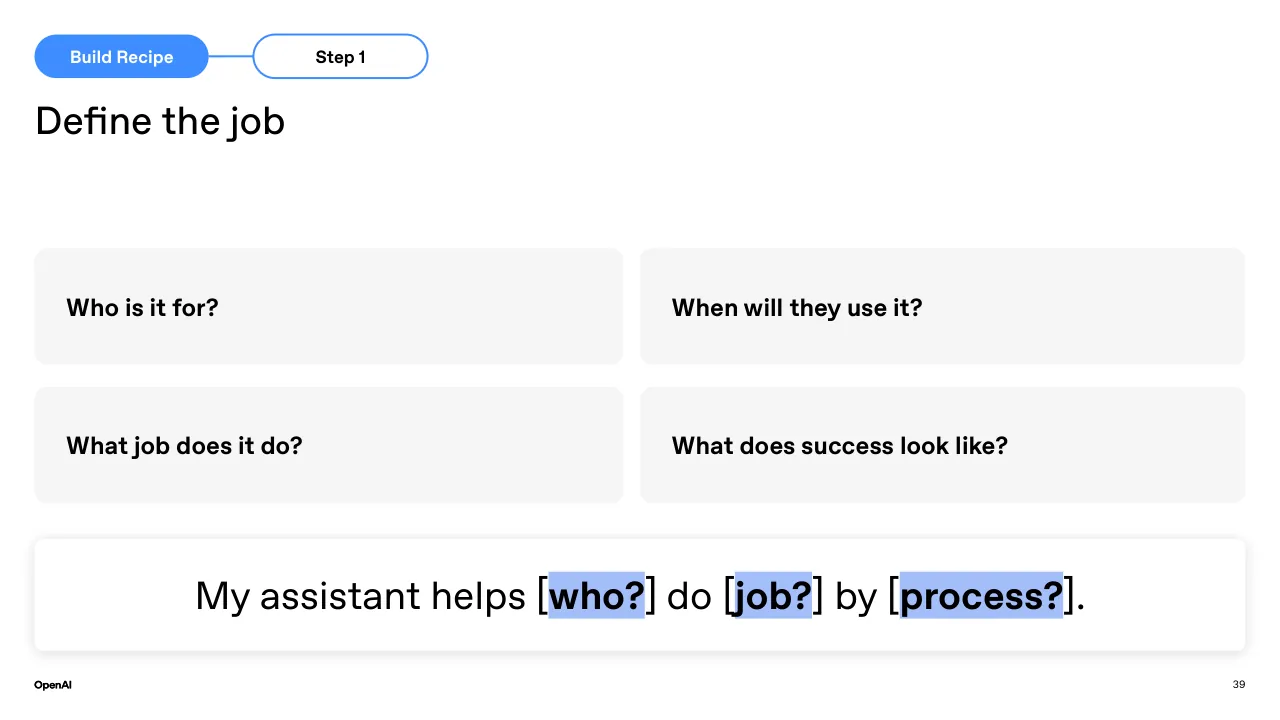
What does the OpenAI deck say about the five-step build recipe for a reusable assistant?
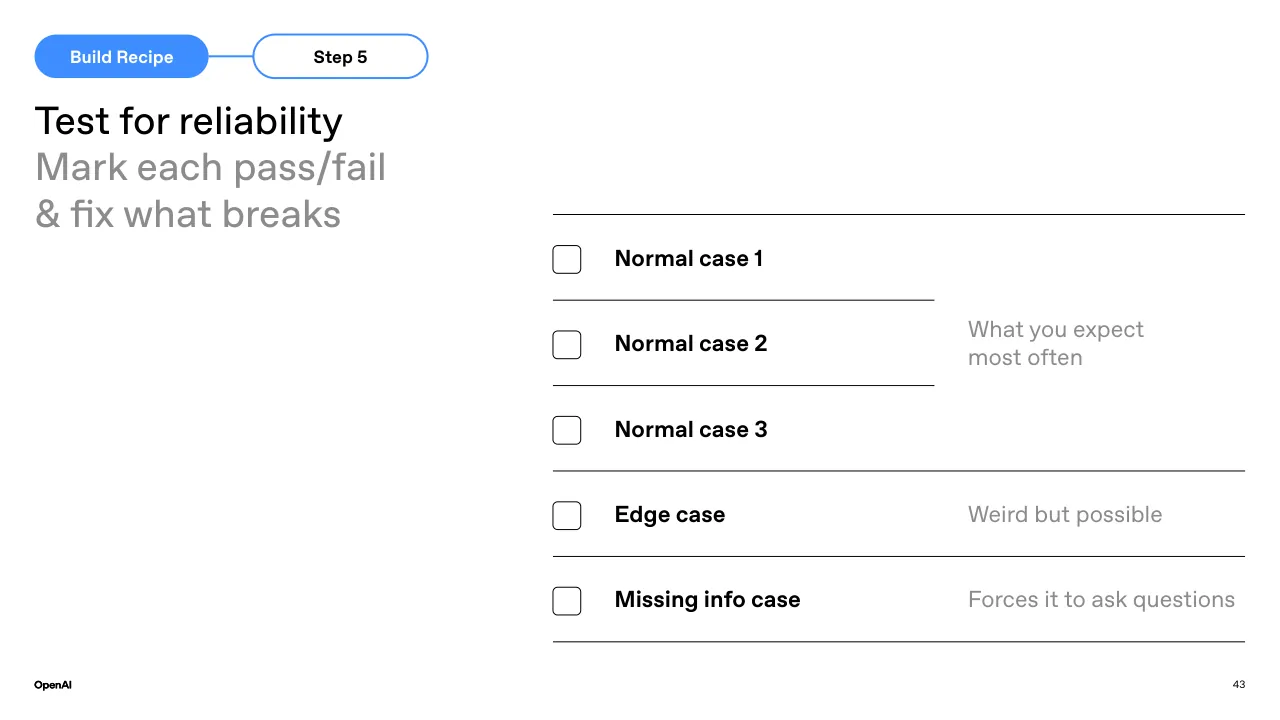
Slide 38 lists the build recipe as five steps: 01 Define the job, 02 Add context & knowledge, 03 Specify the output, 04 Add guardrails, and 05 Test for reliability. Slides 39 through 43 then cover each step in detail.
How many pages does the OpenAI deck have?
The deck has 62 pages in total. It opens with a title slide for the SME AI Accelerator workshop held in Abilene, TX on April 17, 2026 (slide 1).
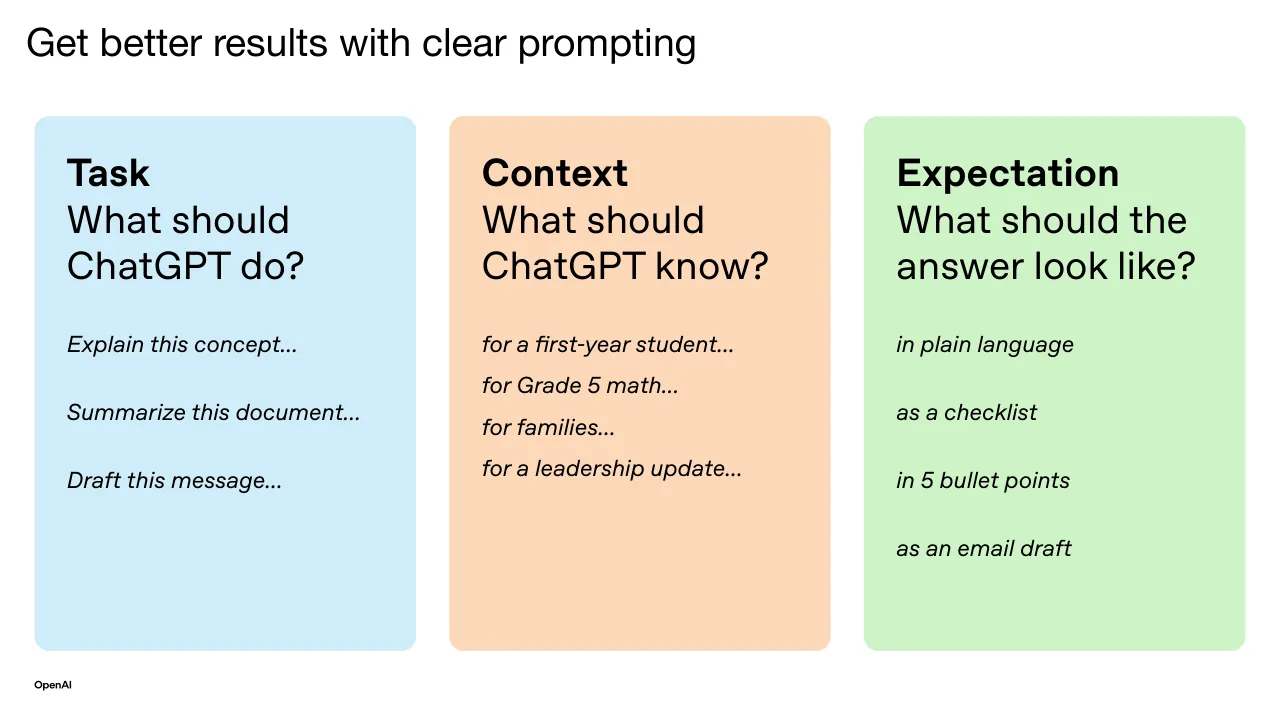
What does the OpenAI deck say about the task, context, and expectation prompting structure?
Slide 26, titled Get better results with clear prompting, asks what ChatGPT should do under Task, what it should know under Context, and what the answer should look like under Expectation. Slide 27 applies the same structure to a worked example about studying for a circuits exam.
Which OpenAI product tiers or products does the deck introduce?
Slide 9 says the session will focus on ChatGPT Plus and also lists ChatGPT Education, Codex, and the OpenAI API. It describes ChatGPT Education as institution-managed with enterprise-grade security, Codex as an AI tool that helps write and debug code, and the OpenAI API as a way to build custom solutions connected to your data.
Details
More from OpenAI
- OpenAI course deck, London SME AI Accelerator April 2026
- OpenAI sales deck, 2025
- OpenAI conference talk
- OpenAI course deck
All OpenAI decks in the library
Review score: 7 out of 10, Effective
Presentation quality, judged with the SlideDeck Co review heuristic. Ask, evidence and idea merit are not rated here.
The deck is a well-paced live workshop. Its two core frameworks, task/context/expectation (slides 26 to 27) and the five-step build recipe (slides 38 to 43), are each shown with one idea per slide, with a progress tag and a fill-in sentence on slide 39. The route is clear: orient, show workflows, teach prompting, practice in pairs, build, iterate, share. Weaknesses are consequential: many workflow slides (13 to 24, 59 to 61) pair a few lines of text with near-empty, illegible ChatGPT screenshots; section dividers and gradient filler slides (6, 12, 18, 20, 31, 32, 35, 46, 47, 53) add little; and the appendix text on slides 55 to 58 is small and dense.
Worth keeping: Keep the colour-coded task/context/expectation cards (slide 26), the build recipe table (38), and the stepped Build Recipe tags with the 'My assistant helps [who?] do [job?] by [process?]' template (39).
Most useful repair: Replace the washed-out, unreadable screenshots on slides 14, 15, 17, 19, 22, 24 and 59 to 61 with cropped, legible views or a concrete example prompt and output, and enlarge the small text on slides 55 to 58.
What would change the score: Cut or merge the decorative gradient dividers and the repeated Q+A, Resources and Thank you slides, and fix the layout glitches such as the empty half on slide 18 and the broken divider lines on slide 43.
Confidence medium. 62 of 62 pages inspected on contact sheets, 4 at readable size. Reviewed 2026-11-08. Model-assisted review (claude-sonnet-5-5).
Full text of the slides (62 slides)
Every slide's words and a description of its charts and images, so the deck can be searched and rebuilt. Also available as Markdown.
Slide 1
OpenAI Academy / Getting Started with ChatGPT / Practical AI for students, educators, and staff / Abilene, TX | April 17, 2026 / Develop Abilene / DEVELOPMENT CORPORATION OF ABILENE / TSTC / Texas State / Technical College / CISCO COLLEGE / SME AI Accelerator
Visuals: One photograph: an abstract, softly blurred colour gradient with smooth folds, like a close-up of silk or glass. Its dominant colours are cyan-blue (about #5BC8F0) at upper left, lavender-violet (about #B39DF5) in a diagonal band from centre-bottom to upper right, deep maroon (about #6B1D4A) in a shadowed fold at right, and teal-blue (about #1A8FB0) at bottom right, with muted beige-grey at bottom left. The lighting is soft and diffuse, with no hard shadows. The image runs full width and is cropped at the bottom edge of the slide. Its top part is covered by the white band. Four logos: the OpenAI Academy wordmark in black at top left; the Develop Abilene logo (a green, blue and yellow hexagon mark above grey 'Develop' and blue bold 'Abilene' with small caps text 'DEVELOPMENT CORPORATION OF ABILENE') at top right; the TSTC logo (a blue stylised eagle-wing mark with red swoosh, navy bold 'TSTC' and 'Texas State Technical College' in navy) at middle right; the Cisco College logo (a blue interlocking 'CC' monogram with black outline, and black 'CISCO COLLEGE' caps below) at lower right.
Slide 2
Introductions - OpenAI / Alex Nawar / Head of OpenAI Academy / Karthik Narayanan / AI Success Engineer / Eric Filipowicz / AI Success Engineer / OpenAI / 2
Visuals: Three circular portrait photographs in a row. Left: Alex Nawar, a man with short dark hair, light stubble, dark navy/black collared shirt, head and shoulders centred, neutral grey-green studio backdrop, soft even front lighting, circular crop with a soft grey drop shadow beneath. Centre: Karthik Narayanan, a smiling man with black-rimmed glasses, short beard, black polo/collared shirt, centred head and shoulders, plain near-white studio backdrop, soft even lighting, circular crop with a faint grey shadow at lower right. Right: Eric Filipowicz, a man with short light-brown hair, grey blazer over black top, slight smile, head and shoulders slightly off-centre, warm blurred restaurant background with brown wood tones and a yellow chair accent at right, warm natural lighting, circular crop with soft shadow. Each photo is a full circle about 16.8% wide. No charts, tables or logos besides the small OpenAI wordmark.
Slide 3
Today’s goal is to get / comfortable with / ChatGPT, see practical / education workflows, / and leave ready to / build an assistant. / OpenAI / 3
Visuals: Full-bleed abstract photograph of smooth, curved, blurred ribbons or folds of fabric-like material. Colours sweep from bright cyan-blue at upper left through lavender and violet on the right, to deep magenta-maroon in the lower-right fold and teal-blue at the bottom right edge. Soft diffused studio lighting with gentle highlights, shallow depth of field, no people or objects recognisable. The image covers the whole slide with no crop or box; a white rectangle is placed over it, centred horizontally, containing only text.
Slide 4
Agenda
01
Getting started with ChatGPT
02
Practical workflows
03
How to get better results
04
Responsible use + exercise
05
Next: build your own assistant
OpenAI
Confidential and proprietary.
4
Visuals: One logo at top right: the OpenAI knot mark, a solid black interlocking-loop symbol in outline form, about 721 by 721 px, placed at x 91.8%, y 0%, w 8.2%, h 14.6%, unboxed and not cropped. One logo at bottom left: the OpenAI wordmark in small bold black letters, at about x 2.6%, y 94.3%, w 3.5%, h 1.5%. No photographs, charts, tables or diagrams.
Slide 5
Follow along on / OpenAI Academy / → Today’s slides / → Sample prompts & tutorials / → Workshop templates / → Files you can use during / activities / → WiFi: / ○ WiFI: TSTC_Guest / tinyurl.com/oai-abilene / LIVE EVENT April 15, 2026 · Last updated on April 17, 2026 / OpenAI Academy Abilene / Resource Hub / Session materials, tutorials, and next steps / OpenAI Academy Abilene / Resource Hub / April 17, 2026 / Welcome! / Use this page as the follow-along hub for Abilene sessions. Below you'll find session slides, a short / recap of what the session covered, copy-ready prompt starters, and current OpenAI Academy / resources to keep / Table Of Contents / OpenAI / Confidential and proprietary.
Visuals: Product screenshot: a browser-style card with white page content, rounded corners and a soft grey drop shadow, spanning about x 30 to 95 percent and y 13 to 80 percent. Inside, the upper section shows a LIVE EVENT badge, a heading, a subline, three small round social icons (X, LinkedIn, email) and a rounded hero image on the right with a blue, cyan, pink and white abstract light-streak gradient carrying white text and the OpenAI logo mark. The lower section shows a Welcome heading, body paragraph, and a Table Of Contents label at the right edge, cut off by the pill button. Blue pill button: solid #3D8DFF rounded capsule with white bold text, centred across the panel boundary. QR code: black and white square code at lower right, with a blue-white centre emblem in the middle showing a stylised arrow-in-square icon; a blue #3E8DFF field sits behind it. Arrows: thin black right arrows at each bullet.
Slide 6
Getting started / 6 / Confidential and proprietary. Internal use only.
Visuals: One photograph, full-bleed across the entire slide: an abstract, softly blurred 3D rendering of satin-like folded surfaces. A pale cyan-blue (about #4FC3E8) field fills the upper-left and centre; a lavender-violet (about #B9A0F0) curved ribbon sweeps from the bottom centre up to the top right; a deep magenta-maroon (about #6B0F3A) fold and a dark teal-blue (about #0E6A8F) shadow sit in the lower right; a muted mauve-brown tone runs along the lower left. Lighting is soft and diffuse with gentle highlights on the ribbon. The image is not cropped in a visible way, has no overlay or tint, and is not boxed. No logos, icons, charts or other graphics.
Slide 7
Why this moment is different
Before ChatGPT
AI was limited to…
Researchers
Computer programmers
Technical experts
After ChatGPT
AI is open to everyone
Students
Teachers
College faculty
Student services
Advising
Principals
District leaders
Academic affairs
Career services
Campus ops
7
Visuals: One photograph-like background: a soft abstract blue gradient (not a subject photo) filling the right half, x 48.7% to 100%, full height. It is lighter pale blue (about #C2E4FB) at the top-right and bottom, with a deeper saturated sky blue (about #7EC8F2) band running diagonally from upper-left to lower-right through the middle right. No people, objects, charts or logos. A black filled rounded rectangle (About #000000, corner radius small, about 0.5% of slide height) sits behind 'After ChatGPT' at x 56.5%, y 21.3%, w 15.0%, h 6.6%. A thin black outlined rounded rectangle (1px stroke about #000000, no fill, corner radius small) sits behind 'Before ChatGPT' at about x 2.7%, y 21.2%, w 15.0%, h 6.7%.
Slide 8
Responsible use of AI
Follow your school or institution’s AI
policy
Get consent before sharing someone
else’s voice, work, or information
Review for accuracy, bias, tone, and
age-appropriateness
Protect sensitive student and staff data,
and know your data controls
Seek expert review for legal, medical, or
financial advice
Use Search or Deep Research when you
need current, cited information
OpenAI
Visuals: Six black single-weight outline line icons, one per card, drawn with rounded strokes of about 2 px at 2000 px width. Card 1 (top-left): a simple person outline (head circle over a rounded shoulder arc). Card 2 (top-right): a notepad with binding rings on the left and a checkmark inside a rounded square. Card 3 (middle-left): an eye with a concentric circle iris. Card 4 (middle-right): a hexagon shield containing a person outline. Card 5 (bottom-left): a graduation mortarboard cap. Card 6 (bottom-right): a magnifying glass with a diagonal handle. All icons are black on white and unboxed. No photographs, charts or tables.
Slide 9
Today, we’ll focus on ChatGPT Plus — but / needs grow / ChatGPT Education / Institution-managed / ChatGPT with / enterprise-grade security / Codex / AI tool that helps you write / and debug code / OpenAI API / Build custom solutions / connected to your data / OpenAI / Confidential and proprietary.
Visuals: Three square blue gradient images, each cropped to a rounded-corner card. Card 1 (left) shows a soft pale-blue haze with a saturated blue diagonal band running from upper-left to lower-right and a pale highlight in the centre, with fine grain; it carries a solid black circle at its top-left corner. Card 2 (centre) shows a similar haze with a saturated blue diagonal band running from top-centre down to the lower-right, and carries a rounded-square app icon with a violet-blue cloud-like glyph containing a terminal prompt symbol, on a white rounded-square tile. Card 3 (right) shows the haze with a deeper blue band at the upper-right corner, and carries the black OpenAI knot logo at its top-left. Footer carries the small black OpenAI wordmark. No charts, tables or photographs.
Slide 10
One tool, different jobs / Students / Educators / Staff & admin / • Understand assignments, / readings, and course concepts / • Build study plans and practice / questions / • Prepare for resumes, interviews, / and transfer/career steps / • Draft lesson plans, activities, / rubrics, and feedback / • Adapt materials for different / learners / • Turn standards, notes, and / articles into usable materials / • Draft emails, FAQs, and event / communications / • Summarize reports, meeting / notes, and feedback / • Turn recurring questions and / documents into repeatable / workflows / 10 / OpenAI
Visuals: Three black single-weight line icons, each about 3% of slide width and 5% of slide height. (1) Students: a pen nib in an outlined pointed-shield shape with a dot at the tip, at about x 2.6%, y 17.3%. (2) Educators: a sunrise-like icon, a half-circle horizon line with three rays above and a small curved arc, at about x 34.7%, y 17.3%. (3) Staff & admin: two outlined user heads with a plus sign beside the second figure, at about x 67.4%, y 17.6%. No photographs, charts or diagrams. Icons are not boxed, shadowed or tinted.
Slide 11
You’re 1 minute away / from using ChatGPT / for real work.
01
Go to chat.com.
Use your browser, desktop or mobile device.
02
Sign-in
Make sure you’re in the right account for this session.
03
Send your first message.
Try this prompt:
I’m a [student / teacher / administrator] at [Institution]. / Give me 3 practical ways ChatGPT could help me this / week.
11
Visuals: A full-bleed abstract photograph of soft, blurred, flowing ribbon-like shapes in cyan, light blue, violet, magenta, teal and deep blue, with pale lavender at top-left and a dusty mauve-pink band at bottom-left. Smooth out-of-focus gradients, no people or objects recognisable. Behind a white rounded rectangle card (fill #FFFFFF, corner radius about 2% of slide width, no visible border or shadow) that spans x 41.2% to 95.3%, y 2.0% to 79.6%. No charts, tables or logos besides the text. The underlined text 'chat.com' is a hyperlink-style underline in black.
Slide 12
Academic
Workflows
Visuals: One abstract photograph-like illustration on the right half: soft, blurred diagonal bands of light and mid blue sweeping from lower left to upper right, with pale white-blue highlight streaks running diagonally across the frame. It is full-bleed within its region (edge to edge top and bottom, cropped to the right half), with no border, no overlay and no text on it. Lighting is soft and even; dominant colours are pale sky blue #DCEEFD at the top, mid blue #8CC8F8 through the centre and saturated blue #6DB8F5 at the bottom.
Slide 13
ChatGPT for Academic Work
01
Understand Learning
Materials
Break down complex concepts, readings, slides, or lecture content
into simple explanations.
02
Explore New Topics
Compare perspectives, generate research questions, or brainstorm
ideas.
03
Improve Written Work
Get feedback on clarity, structure, and argument development in
drafts, lessons, or reports.
OpenAI
13
Slide 14
Learn with ChatGPT / Ask anything. / • How do I prepare for this class? / • How do I teach this topic clearly? / • Give me ideas for this assignment... / OpenAI / 14
Visuals: One illustration: a screenshot-style mockup of the ChatGPT web interface, placed as a boxed portrait window (x 61.1%, y 7.2%, w 29.0%, h 85.7%) with rounded corners and a soft shadow, centred on a light blue gradient backdrop. The window shows a top bar with the ChatGPT logo at left, the label 'ChatGPT 5' with a dropdown chevron, and a restore-style icon at top right. A narrow left sidebar holds three small line icons (compose, search, and a stacked-squares icon). The centre reads 'What can I help with?' in dark grey sans-serif, with below it a rounded input bar containing a plus icon, the placeholder 'Ask anything', a microphone icon and a waveform icon. The bottom left has a small blue-violet circular icon, and the bottom centre has a tiny grey disclaimer line reading 'ChatGPT can make mistakes. OpenAI doesn't use OAI Customer Education workspace data to train its models.' The window background is off-white (about #FAFAFA) and the surrounding backdrop is a soft blur with light sky blue (about #8CCBF9) at left, pale blue (about #D6EEFD) at top right and a deeper cyan (about #5BC0F0) patch at right middle. Lighting is flat and even. The screenshot is not cropped and is fully visible within the window frame. One logo: the OpenAI wordmark in black at bottom left.
Slide 15
Read Files
Attach & understand.
• Explain this assignment brief...
• Adapt this lesson plan…
• Summarize this report and next steps…
ChatGPT 5
What can I help with?
Ask anything
ChatGPT can make mistakes. OpenAI doesn't use OA! Customer Education workspace data to train its models.
OpenAI
15
Visuals: Photograph-free right panel: a soft light-blue gradient (pale sky blue #BFE3FA at top-left and bottom, deeper cyan-blue #5EC0F5 in a glow at right-middle) filling x 48.7 to 100, full height, full-bleed. Over it sits a flat UI screenshot of the ChatGPT web interface, boxed with a white rounded-corner card (about 8px radius) and a faint shadow, spanning x 55.5 to 94.6 and y 9.2 to 90.4. Inside the card: top-left the black OpenAI knot logo; next to it the label 'ChatGPT 5' in dark grey with a small chevron; top-right a grey loading-spinner icon; a narrow left icon column with a new-chat pencil icon, a search magnifier and a library icon, all thin black line icons. Centre: 'What can I help with?' in dark grey sans-serif, above a long pill-shaped input bar (white with light grey border and soft shadow) containing a plus icon, grey placeholder 'Ask anything', a microphone icon and a highlighted waveform voice icon at right. Bottom-left: a small blue-violet (#4B4BE8) circular badge icon. Bottom-centre-right: small grey disclaimer line of text. Screenshot is not cropped; it is a clean full UI frame with a white card background.
Slide 16
Draft, translate, and / communicate
Work across audiences and / languages...
➔ How do I say …
➔ Turn these notes into an email…
➔ Draft a family email…
➔ Translate this message into / Spanish…
OpenAI
ChatGPT 5
Share
Here's a polished internal announcement blog post for rolling out ChatGPT company-wide. It's structured for clarity, excitement, and immediate action so employees can start using it right away.
Chatgpt Launch Announcement
🤖 ChatGPT is Now Available to Everyone at 🏢 [Company Name]
🎉 We're thrilled to announce that 🤖 ChatGPT is now available to every 🙋 across 🏢 Company Name]. This marks a big 🚀 step forward in how we 👩, 💬, and 🤝 together.
Edited
Answer in chat instead
Your announcement is now bursting with emojis for maximum visual impact and fun.
Write or code
Canvas
ChatGPT can make mistakes. OpenAI doesn't use OAI Customer Education workspace data to train its models.
Visuals: One screenshot of the ChatGPT desktop interface, boxed (not cropped, not full-bleed) inside the right panel with rounded window corners and a thin light grey border. Subject: a chat window titled ChatGPT 5 showing a generated reply, a boxed Chatgpt Launch Announcement card with a large bold heading and a short paragraph, a short 'Edited' note, and an empty composer at the bottom. Composition: the window occupies about 53% to 98% of width and 13% to 87% of height, with the announcement card in the upper-middle area. Lighting: flat, even UI lighting. Dominant colours: white and near-white interface with black text, and a purple-blue accent on the bottom-left avatar icon and the Canvas chip. Overlay: none. Background panel is a soft sky-blue gradient, lighter at top-left (about #A8D8F8) and deeper at right and bottom (about #7EC4F2). Four black arrow glyphs (➔) lead the bullet lines at the left.
Slide 17
Study & Project / Planning
Visuals: One photograph/abstract image on the right half: a soft, blurred gradient of pale sky-blue to saturated azure blue with diagonal light streaks running from lower-left to upper-right, resembling flowing silk or fabric folds. Lighting is soft and diffuse with bright white-ish highlight bands; the image is full-height and full-bleed to the top, bottom and right edges, cropped to a rectangle of 1280 by 1080 pixels scaled to fill the 51.3% by 100% area. No overlay or tint beyond the image itself. Dominant colours: #E3F1FD (top, pale), #9FD0F8 (mid), #6DB8F5 (bottom-right, deeper blue). No other visual elements.
Slide 18
ChatGPT for Study and Project
Planning
01
Prepare for exams
Generate practice questions and identify what needs review.
02
Breaks down assignments or
projects
Turn deadlines into timelines with manageable milestones.
03
Plan group work or initiatives
Organise tasks, roles, and next steps for collaborative work.
OpenAI
18
Slide 19
Organise with Projects / Group your chats and maintain context. / • Upload documents as persistent knowledge across chats / • Add custom instructions (style, output, etc.) / • Use one place for a class, unit, committee, or initiative / OpenAI / ChatGPT 5 / What can I help with? / Ask anything / ChatGPT can make mistakes. OpenAI doesn't use OAI Customer Education workspace data to train its models. / 19
Visuals: One photograph-style illustration and one screenshot. (1) The right panel (x 48.7 to 100, full height) is a soft blue gradient: pale sky blue at the top-left, light blue #9ED3F7 at the left edge, a deeper cyan-blue #5BBFF0 glow at the right edge around 60% height, and near-white #E8F5FE toward the bottom. It is full-bleed with no overlay. (2) A screenshot of the ChatGPT interface sits boxed in the panel at x 55.4, y 13.8, w 40.3, h 72.4. It is a white rounded window with a faint shadow. Top-left shows the ChatGPT logo, the model selector 'ChatGPT 5' with a chevron, and a small icon at top-right. A narrow left icon column shows an edit icon, a search magnifier and a folder/projects icon. The centre shows the heading 'What can I help with?' in dark grey, with a rounded input bar below reading 'Ask anything', with a plus icon at left and a microphone and a voice-waveform icon at right. Bottom-left has a small blue-violet badge icon. Bottom centre has the small grey disclaimer 'ChatGPT can make mistakes. OpenAI doesn't use OAI Customer Education workspace data to train its models.' The screenshot is not cropped and has no overlay.
Slide 20
Career
Readiness
Visuals: One photograph-like abstract image on the right half: soft, blurred diagonal bands of light blue and white flowing from lower-left to upper-right, resembling fabric or smooth waves. Full-bleed to the top, bottom and right edges of the slide, with a hard vertical edge at about 48.7% of the width. Lighting is soft and even; the lightest areas are near-white pale blue at top and along a diagonal highlight, darkest areas are saturated sky blue at lower right. No overlay, no text on the image, no cropping of subject beyond the frame. No charts, tables, logos or icons.
Slide 21
ChatGPT for Career Readiness
01
Translate Experience
Turn coursework or projects into resume-ready bullet points.
02
Prepare Application Materials
Draft and refine resumes or cover letters.
03
Practice Interviews
Simulate interview questions and receive feedback.
OpenAI
21
Slide 22
Voice Mode / Natural, real-time conversations. / • Practice an interview answer… / • Brainstorm project ideas… / • Turn what I say into talking points… / OpenAI / 22
Visuals: One screenshot-style illustration on the right: a rounded white app window (about 39.5% wide by 77.1% tall of the slide, starting 7.2% from the top) showing a 'Choose a voice' screen. Top-left of the window has a small OpenAI logo and three sidebar icons (compose, search, and a grid/library icon); a teal-green OpenAI logo circle sits at the bottom-left of the window. In the centre is a blurred spherical orb about 16% of slide width, pale cyan at top fading to saturated blue at the bottom. Below the orb is a voice carousel: 'Juniper' (faded, greyed, with small subtitle 'Upbeat and...' illegible) on the left, 'Spruce' in bold black centre with subtitle 'Calm and affirming', and 'Ember' (faded, greyed, subtitle 'Confident and optimistic' partly illegible) on the right, with grey chevron arrows either side of Spruce. Beneath are a solid black pill-shaped 'Done' button with white text and a plain black text link 'Cancel'. The photograph is boxed inside the light-blue backdrop with soft shadow-like edges, not cropped.
Slide 23
Deep Research
Multi-step research on the internet with
citations.
• Find current hiring trends for…
• Compare transfer or career paths
in…
• Find current evidence or examples
for…
OpenAI
23
ChatGPT 5
Share
Formatting rules
Use a concise writing style. No marketing fluff.
Every row must include at least one first-party source URL.
Keep the table readable (wrap text as needed).
After the table, include a short “Methods & Citations” section listing all first-party sources used for features and department definitions with titles and (if available) last-updated dates.
Scoring rubric (apply consistently)
Business Impact (1–10): estimated time/cost saved, risk reduction, decision quality, or revenue enablement at the function level within 3–6 months.
Ease of Use (1–10): effort to adopt with existing ChatGPT Enterprise capabilities (setup complexity, policy/IT approvals, change management, training).
Output now.
If you cannot verify a department or a capability via first-party sources, exclude it, state why in “Coverage & Gaps,” and proceed.
Thanks for the clear and structured request. Before I begin, could you confirm a couple of things to make sure the output matches your expectations:
1. Should the use cases be focused exclusively on internal OpenAI departments (e.g., HR, Legal, Finance at OpenAI itself) or generalized for how any enterprise’s departments might use ChatGPT Enterprise?
2. Do you want the top 3 use cases for each verified department, or only the single top use case per department?
3. Is there a minimum number of departments or table rows you expect? (e.g., if only 6 departments are publicly verifiable, is that acceptable?)
Once confirmed, I’ll dive in and build the catalog per your strict sourcing and formatting requirements.
ChatGPT can make mistakes. OpenAI doesn’t use OAI Customer Education workspace data to train its models.
1. OpenAI specifically
2. For each verified department
3. No minimum
Research
Sources
Visuals: Right panel: a full-bleed soft blue gradient (no photograph) with light sky-blue at top-left, deeper blue near the middle-right edge, and pale blue-white at the bottom. Over it sits a boxed screenshot of the ChatGPT web interface (about 1280 by 1106 px source) with rounded corners and a faint shadow, showing a grey-white chat window. Left edge of the screenshot: a narrow icon column (compose, search, library icons). Top bar: ChatGPT logo mark, “ChatGPT 5” with a dropdown chevron, and a ‘Share’ button with an upload icon and ellipsis at top right. Chat body: a grey user-message bubble containing a numbered-style instruction block beginning ‘Formatting rules’ and ending ‘Output now.’; below it a plain assistant reply in black text with a 3-item numbered question list, a closing line, and a row of small grey action icons (copy, thumbs up, thumbs down, read aloud, edit, share, regenerate). Bottom: a white rounded input box containing the three typed lines ‘1. OpenAI specifically’, ‘2. For each verified department’, ‘3. No minimum’, with a ‘+’ button, a blue ‘Research ×’ chip, a ‘Sources’ dropdown with globe icon, a microphone icon and a black circular send button. Below the box a small grey disclaimer line. Bottom-left corner of the screenshot: a small blue circular badge icon. Left slide area: no images; the OpenAI wordmark logo at bottom left in black.
Slide 24
Prompting fundamentals
Confidential and proprietary. Internal use only.
24
Visuals: One full-bleed abstract photograph or 3D-rendered illustration of soft, out-of-focus folded fabric or ribbon forms, covering the entire slide. A broad sky-blue sheet fills the upper left and centre. A lavender-to-pale-violet ribbon curls diagonally from the lower centre up to the upper right edge. A deep magenta-maroon fold sits inside its lower right curve, with a dark teal-blue fold at the lower right and a pale mauve, faintly brown-tinted area at the lower left. Lighting is soft and diffuse with smooth gradients and no hard shadows. Composition is a close, cropped view with the forms running off the edges. No overlay or tint is visible beyond the image's own colours. No logos, icons, charts or photographs of people.
Slide 25
What is prompting?
Prompting is the practice of designing and refining prompts — questions or instructions — to elicit specific responses from AI models.
High quality inputs will result in better output.
OpenAI
25
Visuals: One photograph-style illustration of a smartphone (black-bezel phone, front-facing, upright, with rounded corners) showing a ChatGPT 4o chat screen. The phone is placed on the right side of the slide, unboxed and not cropped, on white. Screen content: status bar reading 15:40 with a muted-bell icon, signal, wifi and battery icons at top. Header reads ChatGPT 4o > with a hamburger menu icon at left and a compose icon at right. A user message bubble in light grey (about #F0F0F0) with rounded corners reads: What is prompt engineering? / Describe in one sentence / followed by a few bullet points. The assistant reply begins with a small OpenAI logo mark, then the text Prompt engineering is the practice of designing and refining inputs (prompts) to maximize the quality, relevance, and accuracy of outputs from AI models., followed by five bullets: Involves crafting precise, clear, and structured instructions to guide AI behavior. / Utilizes contextual cues, examples, or constraints to elicit desired responses. / Often iterative, requiring testing and adjustment to achieve optimal results. / Critical for tasks such as text generation, data extraction, and decision support. / Plays a key role in leveraging AI models effectively for specific applications. At the bottom is a grey input bar with a plus icon, a globe icon, placeholder text Message, a microphone icon and a black circular voice icon, and a home indicator bar. No chart or table.
Slide 26
Get better results with clear prompting
Task
What should
ChatGPT do?
Explain this concept…
Summarize this document…
Draft this message…
Context
What should
ChatGPT know?
for a first-year student…
for Grade 5 math…
for families…
for a leadership update…
Expectation
What should the
answer look like?
in plain language
as a checklist
in 5 bullet points
as an email draft
OpenAI
26
Visuals: Three filled rounded rectangles (cards) of equal size, left to right: light blue #D0EDFA (x 2.7%, w 29.8%), light peach #FDD8B9 (x 35.1%, w 29.8%), light green #CEF4C6 (x 67.5%, w 29.8%), all at y 16.1%, h 74.3%, with corner radius about 1% of slide width and no shadow, border or gradient. The OpenAI logo (black wordmark 'OpenAI', bold sans-serif) sits at the bottom left at about x 2.7%, y 93.3%, w 5.5%, h 1.5%. No photographs or charts.
Slide 27
Put in practice
Task
What help do you need?
Help me study for my circuits exam.
Context
What should ChatGPT know?
Help me study for my circuits exam.
I’m a second-year engineering
student preparing for an upcoming
exam.
Expectation
What format do you want?
Help me study for my circuits exam.
I’m a second-year engineering
student preparing for an upcoming
exam. Create a 3-week revision plan
with daily study goals and topic
breakdowns.
OpenAI
Visuals: Three black outline icons, each about 3% to 5% of slide width, sitting above the column headings. Left: a wrench (single open-ended wrench outline, stroke about 2px, rounded ends). Centre: three person silhouettes as outline heads and shoulders, the middle one larger, arranged in a row. Right: two overlapping speech bubbles outlined in black, with a small square window or badge on the right bubble. No photographs, charts or diagrams. Pale yellow #FFF2CC highlight bars sit behind parts of the body text in the Context and Expectation columns, marking the sentence ‘I’m a second-year engineering student preparing for an upcoming exam.’ in Context and that sentence plus ‘Create a 3-week revision plan with daily study goals and topic breakdowns.’ in Expectation.
Slide 28
5 MINUTES
Pair Activity
Rewrite each prompt
Help me study for my exam.
Make a lesson plan on fractions.
Write an email to families.
Explain space travel to me.
28
OpenAI
Visuals: Four identical white rounded rectangles with soft blue drop shadows, each carrying one prompt and one black circular button with a white upward arrow at its lower right. Each card's blue shadow is a 1000 by 242 pixel image placed behind the card. The arrow buttons are 92 by 90 pixel images, each a solid near-black (#1A1A1A) circle with a white thin-stroke upward arrow pointing up and to the top of the circle. No photographs, charts or diagrams. The black pill at top-left is a solid #000000 rounded rectangle with fully rounded ends (pill shape), with white monospaced text inside.
Slide 29
ChatGPT can you help you
write better prompts
“Meta-prompting” is used to write and refine more effective prompts.
Simply tell ChatGPT to…
➔ Help me write a Deep Research prompt
➔ Rewrite this prompt for another situation
➔ Change this prompt to get a clearer output
ChatGPT 5
What can I help with, Thom?
Ask anything
ChatGPT can make mistakes. OpenAI doesn't use OAI Customer Education workspace data to train its models.
OpenAI
Visuals: One photograph-style screenshot of the ChatGPT web interface, boxed (not full-bleed) inside a blue gradient panel. Subject: a blank new chat screen in a browser-like window with rounded corners and a soft shadow. Top bar: OpenAI knot logo at left, the model selector reading ChatGPT 5 with a downward chevron, and a small expand icon at right. Left edge sidebar with three small line icons stacked vertically: compose (pencil in square), search (magnifier), and library (stacked squares). Centre: the heading What can I help with, Thom? above a pill-shaped input bar with a plus icon, placeholder Ask anything, a microphone icon and a voice-waveform icon at right. Bottom: a small blue circular badge at left and a two-line grey disclaimer, centred. Lighting: flat, even UI lighting. Dominant colours: white window, light grey text, blue badge. Background panel: soft gradient from light sky blue #8FD0F8 at left and top to deeper cyan #5BC0F0 around the right-middle, fading to pale blue #DDF0FC at bottom right. No overlay or tint beyond the gradient. The window is not cropped. Also the OpenAI wordmark in black at bottom left.
Slide 30
Next: Build your own
reusable assistant
Turn a repeatable task into a reusable
assistant.
• Add instructions for how it should
behave
• Add optional files or reference
material
• Give it conversation starters
• Test it with real prompts
OpenAI
ChatGPT 5
What can I help with?
Ask anything
ChatGPT can make mistakes. OpenAI doesn't use OAI Customer Education workspace data to train its models.
30
Visuals: One photograph-style screenshot of the ChatGPT web interface, placed as a rounded-corner white window inside the blue right panel. Its subject is an empty new-chat screen: at top left a small OpenAI logo mark and the label 'ChatGPT 5' with a downward chevron; below it a narrow left sidebar with three small line icons (compose/edit, search, and a third icon); at top right a small fullscreen/expand icon. At the centre of the window the heading 'What can I help with?' sits above a rounded input bar containing a plus icon, the placeholder 'Ask anything', a microphone icon and a waveform/voice icon. At bottom left of the window there is a small blue circular icon, and along the bottom centre a tiny grey disclaimer line reads 'ChatGPT can make mistakes. OpenAI doesn't use OAI Customer Education workspace data to train its models.' The composition is a frontal, unrotated view with the whole window visible, not cropped. Lighting is flat and even. Dominant colours are white and light grey inside the window, with a blue-to-pale-blue gradient behind it and a saturated blue (#4F46E5 approx.) icon. The window is boxed, with a soft shadow, and is not full-bleed. The right panel background is a blue gradient illustration: a sky-blue #8FCBF8 area at the top left, lighter #CDE9FB toward the bottom, and a deeper blue #6DB8F0 band along the right edge. No overlay or tint is visible on the screenshot itself.
Slide 31
Q+A / Confidential and proprietary. / 31
Visuals: One full-bleed abstract photograph or rendered illustration covering the whole slide. It shows soft, blurred, satin-like folds of material: a broad cyan-blue sheet fills the upper left and centre, a lavender-violet fold sweeps diagonally from the bottom centre up to the top right, a deep magenta-crimson shadow sits in the fold at lower right, a deep teal-blue curve lies at bottom right, and a mauve-pink and muted brown band runs along the bottom left with a thin dark brown curved line. Lighting is soft and diffuse with no visible light source, the composition is an extreme close-up with the subject cropped at all edges, and the dominant colours are cyan #4FC3E8, lavender #B08CF0, magenta #7A0F3A and teal-blue #0B6E99. The image has no overlay or tint and is not boxed.
Slide 32
Resources
32
Confidential and proprietary.
Visuals: Full-bleed abstract photograph of soft, blurred satin-like folds, with a shallow depth of field. Upper left is a bright cyan-blue (#4FC3E8) surface that fades to pale lavender at the top-left corner. A diagonal lavender-violet (#B08CF0) fold runs from the bottom centre up to the top right. A deep magenta-maroon (#5A0A2E) shadow crease curves through the lower right. The lower right is a deep teal-blue (#0A5C8A). The lower left is a muted mauve and tan (#9A7A8A) area. Lighting is soft and diffuse with smooth gradients. The image covers the whole slide, is not boxed, and has no overlay or tint.
Slide 33
chat.com/100chats
About
Features
Learn
Business
Pricing
Download
Try ChatGPT
100 chats for
college students
These chats were made by students, for students. Learn new
things, start a career, and navigate life more confidently.
Tap a chat to get started.
All
Study
Career
Life
Pre-grade your essay
Act as my professor and grade my assignment according to the
rubric.
Rubric.pdf
First Draft.docx
Decode a tough passage of text
Translate this part that says "confined their employments" into
language I can understand.
Photo of the page
Learn by teaching
I'm studying Behavioral Biology. Ask me questions like a
classmate I'm explaining the concept to.
Make flashcards faster
Turn this into flashcard-style questions and answers.
Class notes.pdf
Talk through your notes to make them stick
I'll go through my slides on RNA interference one by one, and I
Simplify a confusing topic
Explain quantum physics to me in 3 different levels of
Visuals: Illustrations: (1) At upper left, a hand-drawn line illustration of an open book with a dark charcoal sketch outline; a young woman with long hair in a light grey top and dark trousers is mid-stride, leaping across the left page, and the right page shows a framed gold/yellow two-handled vase or amphora. The book's pages are white with grey wavy text-line strokes. (2) At upper right, a yellow tent drawn in sketch lines with a dark charcoal outline and a black shadow beneath, and a small campfire of yellow flames above crossed grey-black logs at its lower left. Both illustrations are flat with a textured pencil feel. Other visuals: a filter segmented control (white pill with 'All' selected in a light cyan pill). Six white rounded cards with bold titles and body copy; grey dashed-outline file chips with a grey icon tile: Rubric.pdf and First Draft.docx (document icons), Photo of the page (camera icon), Class notes.pdf (document icon, cut off at the bottom edge). The 'Try ChatGPT' button is a black pill. The whole slide is a screenshot of a web page, with the cards and buttons flat and no shadows.
Slide 34
ChatGPT Education Resources
OpenAI Academy
academy.openai.com/home/clubs/work-users-ynjqu
ChatGPT Cookbook
cookbook.openai.com
OpenAI Help Center
http://help.openai.com
OpenAI
34
Confidential and proprietary.
Visuals: Three QR codes, one inside each white card, black modules on white, roughly square, sitting in the lower half of each card. Left QR (410 by 410 px box, 490 by 490 px source at 12.5% x) sits under the OpenAI Academy card. Middle QR sits under the ChatGPT Cookbook card. Right QR sits under the OpenAI Help Center card. Each QR is flat, evenly lit, unshaded and unrotated. No photographs or charts. The blue background is a soft gradient image rather than a photograph.
Slide 35
Part 2: Build a reusable assistant
Confidential and proprietary. Internal use only.
Visuals: One full-bleed abstract photograph of soft, out-of-focus fabric-like folds. A cyan-to-sky-blue field fills the upper left, fading to pale lilac at the top left corner. A large lilac-violet ribbon curves from the bottom centre up to the top right. Behind it, deep magenta-maroon shadow folds run down the right side, and teal-blue shading sits at the lower right. The lower left is muted mauve and dusty beige. Lighting is soft and diffuse, with no visible light source and no hard highlights. The image is cropped to the full slide with no border and no overlay. A small white line icon sits left of the title: an outlined rounded shape resembling a helmet or robot head with a small arc on top and a horizontal base bar beneath.
Slide 36
The rest of today / Watch / Try / Share / Vote on one GPT and build it together / Build your own version solving a real problem / Compare, improve, and get it ready to reuse / OpenAI / 36
Visuals: Three filled circles, each with a black line icon, joined left to right by two black arrows. Circle 1 (x 35.1%, y 44.3%, 6.4% square) holds an eye icon: a horizontal almond outline with a circular pupil. Circle 2 (x 59.4%) holds a pointer cursor with three short radiating click lines above it. Circle 3 (x 83.7%) holds a group icon of three outlined heads and shoulders. Arrow 1 runs from about x 41.5% to 58.3% at y 50.0%, ending in an open chevron head pointing right. Arrow 2 runs from about x 65.8% to 82.5% at y 50.0%, with the same open chevron head. Circles are light blue #B7D4FE, icons and arrows black, no shadows, flat.
Slide 37
Vote: Which GPT should we build?
01
Course / syllabus / helper
Answer recurring course / questions using a syllabus, / assignment brief, or FAQ.
02
School / campus / FAQ helper
Give clear answers using a / handbook, event info, or / support docs.
03
Career coach / interview prep
Turn student experience / into stronger resume / bullets, interview practice, / and next steps.
OpenAI
37
Visuals: None as images or charts. Three solid rounded rectangles act as card backgrounds: card 01 is #B7D4FE at 50% opacity (renders as a pale blue about #DBEAFF on white), card 02 is solid #B7D4FE, card 03 is solid #7AB1FE. Each card holds a bold number (01, 02, 03), a two-line heading and a three- or four-line body paragraph, all in black. No photographs, icons or diagrams.
Slide 38
Build recipe
01
Define the job
Who + when + what ‘good’ looks like
02
Add context & knowledge
Your notes, policies, examples, files
03
Specify the output
Format, length, tone
04
Add guardrails
Do/don’t, when to ask you
05
Test for reliability
5 test prompts / tasks
OpenAI
38
Visuals: Five thin black horizontal rules, each about 1 px, spanning the content width at y about 42.9%, 54.8%, 66.6%, 78.5% and 90.3%, dividing the five rows. No photographs, charts, icons or illustrations. The only other visual is the flat light-blue panel covering the lower part of the slide.
Slide 39
Build Recipe / Step 1 / Define the job / Who is it for? / When will they use it? / What job does it do? / What does success look like? / My assistant helps [who?] do [job?] by [process?]. / OpenAI / 39
Visuals: Non-text elements: two rounded-rectangle pills forming a breadcrumb, a short blue connector line between them, four light grey rounded cards in a 2x2 grid, one white rounded card with a soft shadow holding the sentence, three pale-blue highlight rectangles behind the words who?, job? and process?, and a faint soft-shadow image strip under the bottom card. No photographs, charts, tables or logos other than the small OpenAI wordmark in the footer.
Slide 40
Build Recipe / Step 2 / Add context and knowledge / What content/assets will the user paste/upload each time? / What steps should the assistant follow to produce the output? / What questions should it ask when key info is missing? / OpenAI / 40
Visuals: Two step tabs at top left: a filled blue pill labelled Build Recipe (fill #3D8DFF, white bold text) and a white pill with a blue outline labelled Step 2 (black bold text), joined by a thin blue horizontal connector line. Below the title, three identical light grey rounded rectangles (#F5F5F5) stacked vertically, each holding one question with the first phrase in bold. No photographs, charts, or icons. The only logo is the OpenAI wordmark in the footer.
Slide 41
Build Recipe
Step 3
What should the output look like?
Be explicit about structure, length, and tone.
Return a 6-line sign + a 120-word email + 1 SMS.
Return a table: Theme | Evidence | Fix | Owner | Effort.
Always include a quick ‘human check’ checklist.
OpenAI
41
Visuals: Three white rounded rectangular cards with soft drop shadows, stacked vertically at equal spacing, each about 94.6% wide and 16.1% high. Each card has a solid black circle (about 5% of slide height in diameter) containing a white upward arrow, placed at the right edge of the card near its lower portion. Two header pills: a solid blue (#3D8DFF) filled pill with white bold text, and a white pill with a 2px blue (#3D8DFF) outline and black bold text, connected by a short blue horizontal line. No photographs, charts, or other graphics.
Slide 42
Build Recipe
Step 4
Add guardrails
Accuracy
Don’t invent facts; ask clarifying questions
Safety
Don’t include personal data
Style
Practical, concise, no hype
Human check
What must be verified before sending?
OpenAI
42
Visuals: Four identical checkbox icons, each an empty rounded square outline with a thin black stroke (about 1.5 px at 2000 px width) and a small corner radius, sitting to the left of each checklist row. Four full-width horizontal black hairline rules (about 1 px) separate and bracket the rows: one above the first row and one below each row. A thin blue (#3D8DFF) connector line joins the right edge of the 'Build Recipe' pill to the left edge of the 'Step 4' pill. No photographs, charts or illustrations.
Slide 43
Build Recipe / Step 5 / Test for reliability / Mark each pass/fail / & fix what breaks / Normal case 1 / Normal case 2 / What you expect / most often / Normal case 3 / Edge case / Weird but possible / Missing info case / Forces it to ask questions / OpenAI / 43
Visuals: Five checklist rows, each with an empty rounded-corner square checkbox (about 2.3% of slide width, black outline about 0.15% stroke, corner radius about 0.4%) at x about 43%, separated by thin black horizontal rules (about 0.1% of height, #000000) spanning the right column. Row 1 'Normal case 1' has a rule above it at about 16.7% height spanning to 97.5% and a rule below at about 33.4% spanning to about 73%. Row 2 'Normal case 2' has a rule below at about 53.5% spanning to about 73%. Rows 4 and 5 have full-width rules below spanning to 97.5%. No photographs, charts or icons. Step indicator: a filled blue pill and an outlined pill connected by a short blue line.
Slide 44
Now it’s your turn
Pick the simplest
format
Chat / prompt pack
Project
Prompts you can copy &
Workspace with your
paste.
files + instructions
Best for
Best for
When you’re still exploring a
Staying organized and
range of tasks.
consistent while conducting
related tasks
If you’re not sure, start
in Chat or a Project.
Goal: Leave with one
working v1 you can
reuse next week.
Custom GPT
Data workflow
Reusable assistant for one
Analyze data from a range of
job
sources
Best for
Best for
One repeatable job with
Spreadsheets, reports,
stable knowledge and a
reviews, and trends
consistent outputt
44
OpenAI
Visuals: Four flat rectangular panels forming a 2x2 grid with no gaps and no borders. Top-left panel is pale green (#CDF4C6 at 50% opacity) with the 'Chat / prompt pack' block. Top-right panel is pale yellow (#FEEFC9 at 50% opacity) with the 'Project' block. Bottom-left panel is pale blue (#B8D4FE at 50% opacity) with the 'Custom GPT' block. Bottom-right panel is pale peach (#FDD8B9 at 50% opacity) with the 'Data workflow' block. No photographs, icons, charts or arrows. Each panel is a solid tint with square corners, no shadow, no gradient.
Slide 45
30 MINUTES / Try / Individual / Activity / Build sprint / Scan a QR code for copy/paste / instructions, conversation / starters, and test prompts. / Build individually or in pairs. / tinyurl.com/ai-skills-jam / Choose the GPT you want to build / Students / ● Study / Coach GPT / ● Career & / Transfer / Coach GPT / Educators / ● Lesson & / Materials / Builder / GPT / ● Family & / Student / Comms / Staff & admins / ● Student / Services / FAQ / Navigator / GPT / ● Leadership / Briefing / Copilot / GPT / OpenAI / 45
Visuals: Visual elements: (1) A black pill tag reading 30 MINUTES in white monospace type, with a light-blue circular icon to its right containing a black cursor-click icon (a pointer with radiating click marks), and the word Try beside it. (2) A square black-and-white QR code, about 431 by 431 pixels, boxed with no border, sharp corners, no crop, placed at the left of the URL pill; at its centre sits a small black rounded square containing an up-right arrow symbol that overlays the QR modules. (3) A blue pill-shaped button in #3D8DFF containing the white bold URL tinyurl.com/ai-skills-jam. (4) Three placed images, each 655 by 981 pixels, positioned under the three white cards; they are covered by the cards and only their soft shadow halo is visible around the card edges, so no image content can be read. (5) Three white rounded rectangles (cards) with soft drop shadows, each holding a bold heading and a bulleted list. No photographs or charts are present.
Slide 46
Quick check-in / How is it going? / - What are you building? / - What’s working? / - What’s not? / 46 / Confidential and proprietary.
Visuals: One full-bleed abstract photograph or 3D-render style image covering the entire slide: smooth, out-of-focus soft folds of material. A large pale-blue to cyan (#4DC4EA) field fills the upper left and centre. A lavender-to-violet (#B99CF2) curved ridge sweeps diagonally from the bottom centre up to the top right. A deep maroon (#5A0F2E) crease runs beside the ridge in the lower right, shading into a dark teal-blue (#1B7FAF) at the bottom right and a lighter teal (#3FB3D6) at the far bottom right corner. The lower left fades to a dusty mauve-brown (#8E6F80). Soft diffuse lighting, no people or objects, no overlay or tint, full-bleed with no cropping of the frame, no borders.
Slide 47
Make it reliable
Iterate, improve,
and polish
SME AI Accelerator
Visuals: One photograph-like abstract 3D render, full-bleed, covering the whole slide without cropping in a box. It shows smooth, soft-focus satin-like folds or ribbons of material. A pale cyan-blue surface fills the upper left and centre. A lilac-violet fold curves diagonally from the lower centre up to the upper right. A dark maroon-magenta shadow crease runs along the right side, and teal-blue surfaces appear at the lower right. Lighting is soft and diffused with gentle highlights on the lilac fold. The composition is shallow depth of field with blurred edges. Dominant colours are cyan #4CC9F0, lilac #B9A6F5, maroon #5A0F3A and teal-blue #1A7FB0. There is no overlay or tint beyond the natural colour. The title is also present as a raster image of the text 'Make it reliable' placed over the photograph, 2048 by 225 pixels. No logos or icons appear other than the footer text.
Slide 48
Iteration clinic
Start with one,
then test it
Tighten output format
Add guardrails
Make it easy to scan
No guessing; asking
clarifying questions
Testing
Add a knowledge file
Add a 5-test set +
(FAQ, policies, menu,
pass/fail checklist
pricing notes, etc.) and
retest
48
OpenAI
Visuals: Logo: the OpenAI wordmark, set in small black bold sans-serif lowercase-style lettering reading 'OpenAI', bottom-left of the slide. Four flat light-blue rectangular cards (#B7D4FE) forming a 2x2 grid, each with rounded corners and no shadow, containing only text; no photographs, charts or icons.
Slide 49
18 MINUTES / Try / Individual / Activity / Improve, test, and / save your solution / Improve your v1 / Test and retest with each change / Fix what breaks / Save it / Definition of Done: / ● Runs end-to-end / ● The output is usable / ● You've tested it / ● You saved it / OpenAI / Power-ups / Finished early? Try going up a level. / ● Add a full eval: 3 normal cases, 1 edge case, 1 missing info case / ● Add a tool: search, file upload, or image generation / 49
Visuals: Icon: a small black sparkle/click-cursor glyph (a pointer arrow with three short radiating strokes) centred inside a light blue circle at about x 17.3%, y 4.8%, w 3.4%, h 6.0%. Blue circle fill about #BFD8FF. No photographs, charts or tables. Four white rounded cards and one translucent light-blue box sit on the blue panel, each with a soft blue-tinted drop shadow (the 1000 by 135 and 1000 by 275 pixel shadow images). Bullets are solid black filled dots.
Slide 50
What did
you build?
3 minutes per attendee
The problem
What was the real pain point you chose?
The solution
What does your AI-assisted process do now?
What format did you choose? Did you use any tools?
One result
Describe the result or output of your process.
What’s next?
Share how you’d improve or level-up the tool you
built, or what you want to make next.
50
SME AI Accelerator
Visuals: One abstract photographic-style background illustration: a soft, blurred, iridescent gradient of flowing ribbon-like shapes. It covers the full slide (0 to 100% in both directions) and is not boxed or cropped to a frame. Colours run from pale lavender and sky blue at the top-left, through bright cyan in the upper middle, to violet and magenta streaks on the right, deep navy-teal at the lower right, and a dusty mauve and pink area at the lower left. Lighting is soft and diffuse, with brighter highlights near the top-centre. Four white rounded rectangles (cards) sit over the right side of the background as shapes, not images. No logos, icons, charts or tables.
Slide 51
Thank you / 51 / SME AI Accelerator
Visuals: Full-bleed blurred abstract photograph of smooth, satin-like folds in cyan, sky blue, lavender, magenta and deep teal, with a large lilac fold sweeping from lower centre to upper right. Soft focus, no people or objects, lit evenly from the upper left. Four white logos sit over the lower part: Booking.com wordmark, REI Retail Excellence Ireland lockup, Skillnet Innovation Exchange lockup and Dogpatch Labs lockup. No overlay tint is visible.
Slide 52
Continue learning with
OpenAI Academy
Join our free learning communities
to keep building with AI
Share your feedback
Tell us what worked, what didn’t, and what you
want next.
OpenAI Academy
Higher education chapter
Templates, training, and a global community
for higher education.
Join today!
tinyurl.com/abilene-feedback
tinyurl.com/oai-higher-ed
52
OpenAI
Visuals: Two identical QR codes, each on a white square tile with a soft drop shadow. Each QR code is black modules on white with three square finder patterns, and a black rounded arrow-into-square icon sits at its centre. The left QR code (about 11.3% by 20.0% of the slide, inside a 13.3% by 23.6% white tile) encodes tinyurl.com/abilene-feedback. The right QR code (same size, at x 85.1%) encodes tinyurl.com/oai-higher-ed. The two blue pill-shaped buttons are described under elements. No photographs or charts.
Slides 53 to 62 continue in the full text file.
Download this deck
The hosted PDF of every library deck is free for readers of the SlideDeck Co newsletter. Join with your email and the viewer and download appear here.
Building a deck of your own? The SlideDeck Co Standard Deck is a slide library for business presentations: reviews, updates and plans.