The deck opens with a welcome to the SME AI Accelerator in London on April 29, 2026, introducing three speakers from OpenAI and Enterprise Nation and Booking.com, followed by a short room-introduction exercise and a stated goal of leaving with one reusable solution. It then moves through an agenda covering ChatGPT foundations, responsible use and hallucination risks, and prompting, with a worked example of rewriting weak prompts into task, context and expectation. Next comes a demo of two workflows for a fictional London florist, customer feedback analysis and a spring promotion campaign, each with input, output and hands-on activities. After a coffee break, the session turns to building a custom GPT or project through a build recipe covering job definition, context, output format, guardrails and testing, followed by a showcase of local small business owners, individual build time, sharing and a closing call to continue learning. The slides rely heavily on step-by-step callouts, paired exercises and time-boxed activities, so the structure is easy to follow as a training run-through.
Slides worth studying
Questions about this deck
What does the OpenAI SME AI Accelerator deck say about the Harbour Bloom Florist example?
Slide 24 describes Harbour Bloom Florist as an independent neighborhood florist in London that creates bouquets, gift arrangements, and event flowers. It serves local customers and nearby businesses and wants to boost sales and handle marketing faster.
How many slides does the OpenAI SME AI Accelerator deck have?
The deck has 69 pages. The agenda on slide 5 lists eight sections, from Welcome through Showcase and wrap.
What does the OpenAI SME AI Accelerator deck say about responsible use of AI?
Slide 12 says to keep a human in the loop for important work, obtain consent before sharing someone else's voice or data, and watch for bias and perspective. It also advises knowing your data controls, protecting sensitive personal data, seeking expert review for legal, medical, or financial advice, and asking for sources when you need current answers.
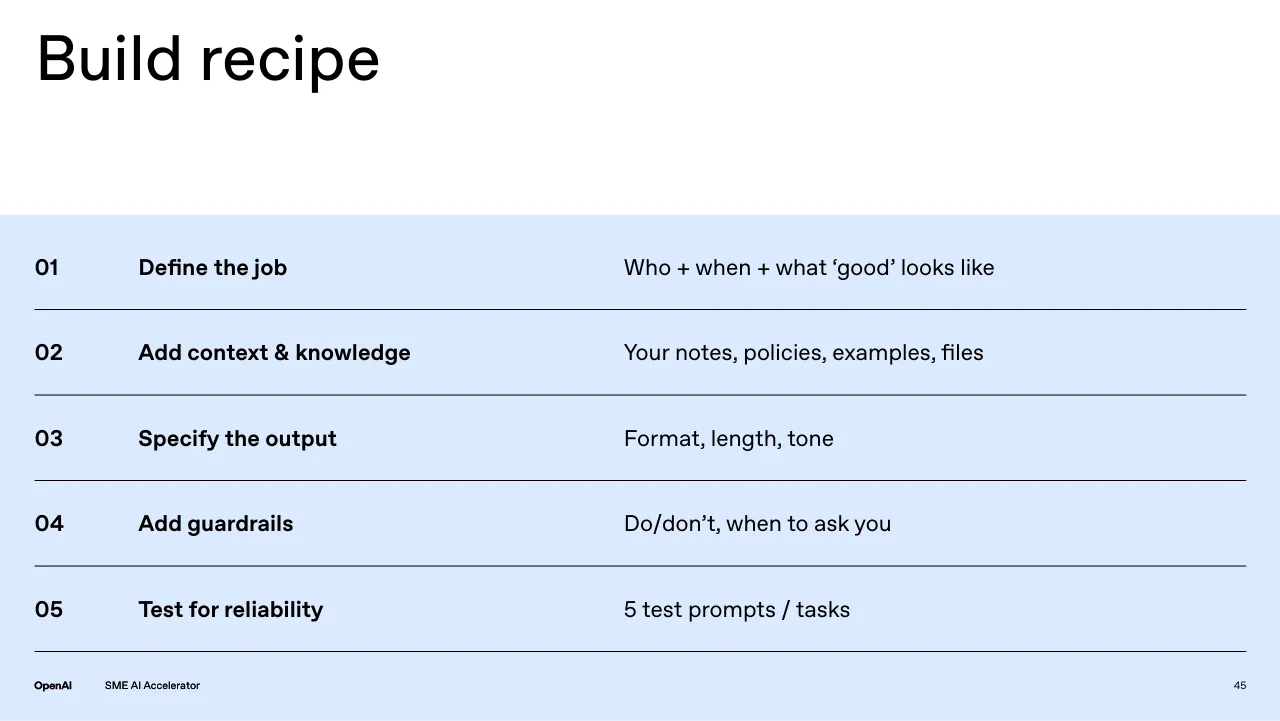
What is the OpenAI SME AI Accelerator deck's build recipe for creating a custom GPT?
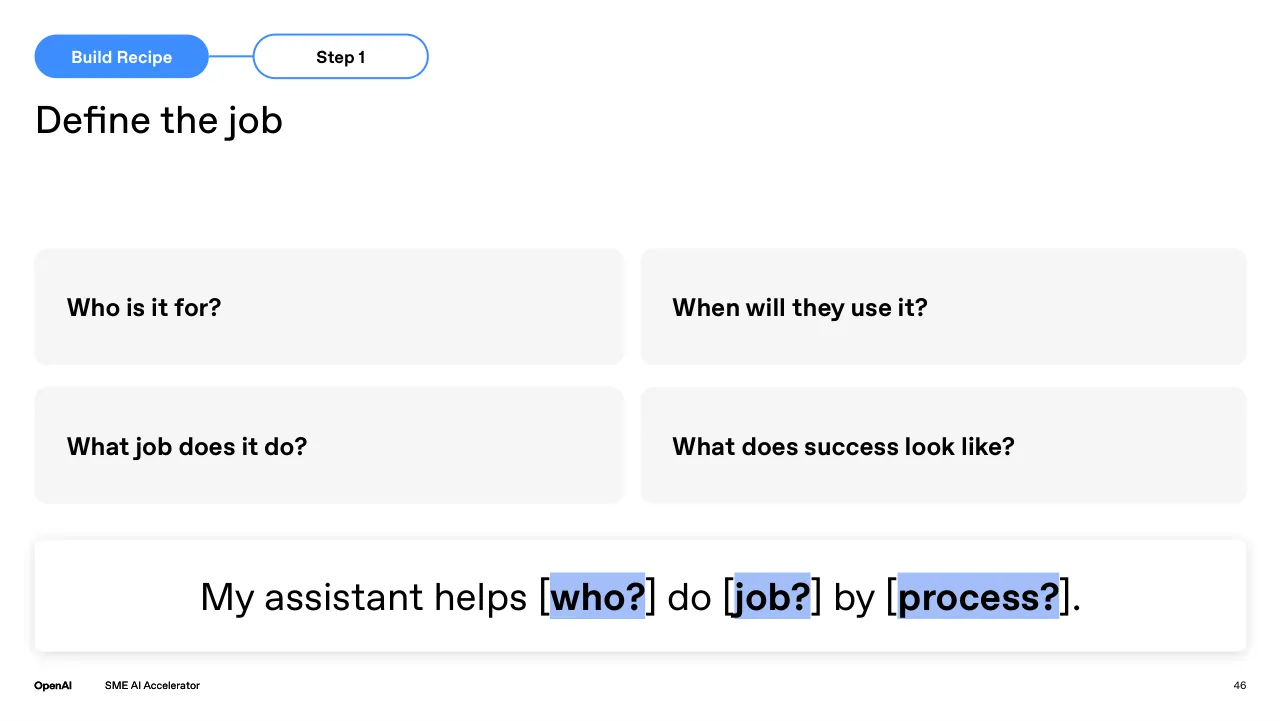
Slide 44 lists a five-step build recipe: define the job, add context and knowledge, specify the output, add guardrails, and test for reliability. Slide 45 expands step 1 with questions about who the tool is for, when they will use it, and what success looks like.
Details
More from OpenAI
- OpenAI course deck, SME AI Accelerator Abilene April 2026
- OpenAI sales deck, 2025
- OpenAI conference talk
- OpenAI course deck
All OpenAI decks in the library
Review score: 7 out of 10, Effective
Presentation quality, judged with the SlideDeck Co review heuristic. Ask, evidence and idea merit are not rated here.
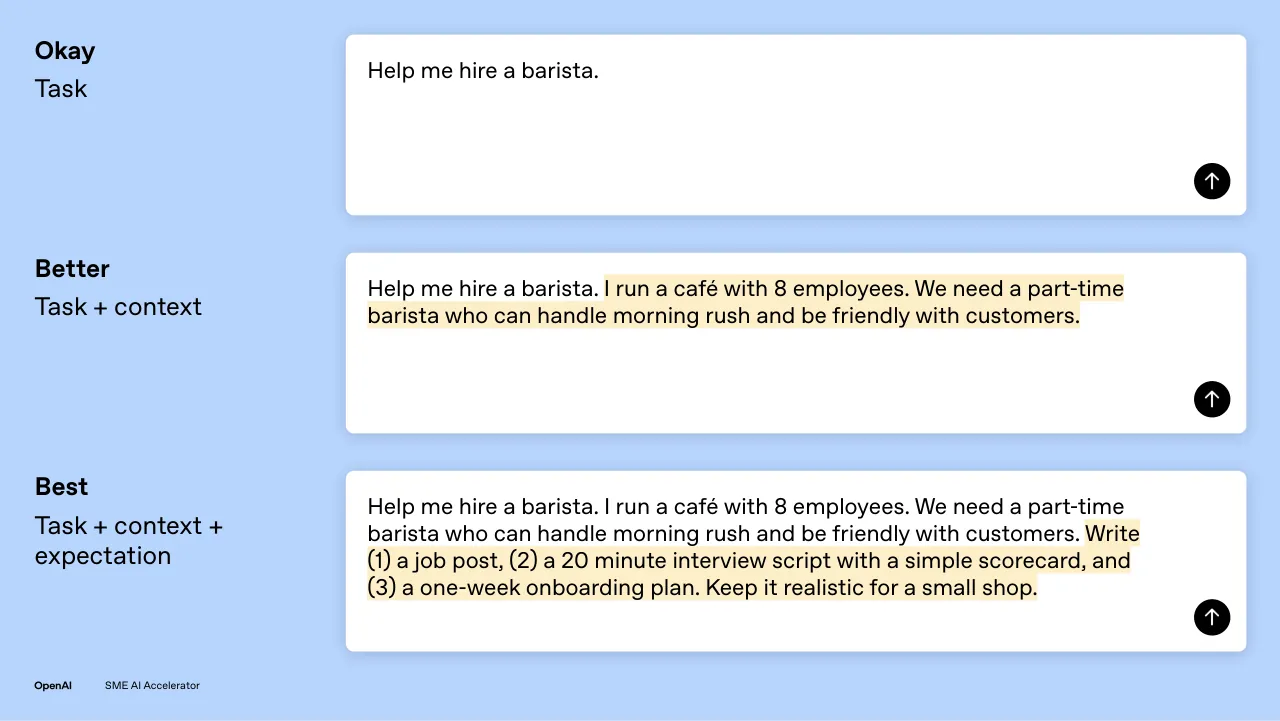
This is a well-built facilitation deck: a consistent Watch, Try, Share pattern, time badges, a single running florist example, and a clear before/after prompt ladder (slide 17) make it easy to follow live. The build recipe is repeated as a five-step tracker (slides 44 to 49), so the route is coherent and each activity page tells people what to do. Weaknesses are many near-empty pages with small text and large dead space (slides 8, 19, 26, 28, 30, 38), several tiny and unreadable screenshots (slides 14, 15, 28, 36), and about a dozen gradient divider and name pages that add length without content.
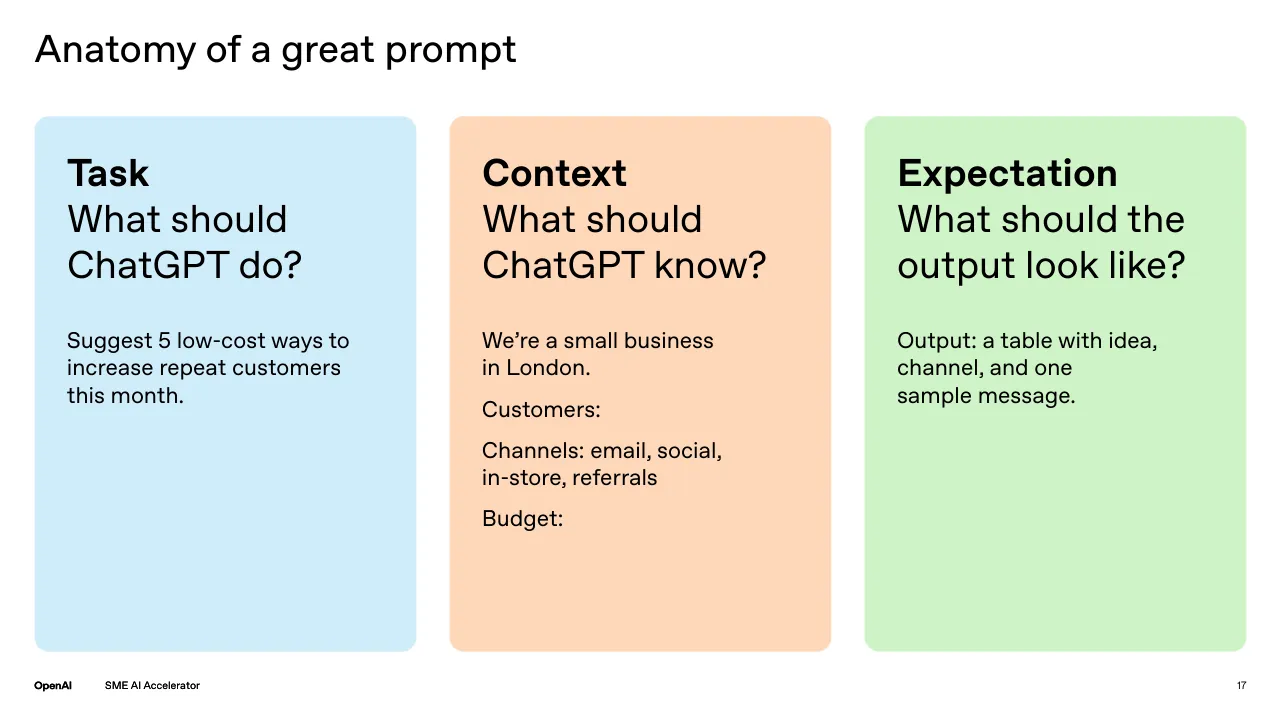
Worth keeping: Keep the Task, Context, Expectation colour cards (slide 16), the Okay, Better, Best highlighted prompt ladder (slide 17), the numbered build recipe table (slide 44) and the Watch, Try, Share structure with time badges.
Most useful repair: Enlarge the body text and screenshots on the demo pages (slides 14, 15, 28, 29, 31) and fill or tighten the large empty areas on the text-light slides such as 8, 19 and 26, where the small text floats far from its title.
What would change the score: I would cut or merge the repeated gradient divider and speaker pages (slides 2 to 4, 52, 53, 62, 65) and trim the duplicate Watch, Try, Share route slides (23, 42, 50).
Confidence medium. 69 of 69 pages inspected on contact sheets, 4 at readable size. Reviewed 2026-11-08. Model-assisted review (claude-sonnet-5-5).
Full text of the slides (69 slides)
Every slide's words and a description of its charts and images, so the deck can be searched and rebuilt. Also available as Markdown.
Slide 1
OpenAI Academy | Booking.com
SME AI Accelerator
London | April 29, 2026
Enterprise Nation
SME AI Accelerator
Visuals: Photograph (abstract, not a scene): soft out-of-focus blurred gradient light in blue, lavender, violet and pink, with diagonal streaks running from upper left toward lower right and a brighter blue glow near the bottom centre. It is full-bleed across the full width, from the bottom of the white top band to the slide edge, with no border, crop or overlay. Logos: OpenAI Academy and Booking.com lockup in black at top left, separated by a thin vertical grey rule; Enterprise Nation logo in white (a six-segment hexagonal mark with the wordmark 'Enterprise Nation' set in white bold sans-serif) at lower right over the photograph.
Slide 2
OpenAI
Welcome
Kofi Ankomah
Account Director
OpenAI
SME AI Accelerator
3
Visuals: One full-bleed abstract illustration fills the whole slide: soft, blurred, diagonal light streaks of magenta-pink, periwinkle, lavender and sky blue, with a deeper saturated blue glow near the lower centre and a pink-to-white haze at the lower left and right edges. It has no subject, people or objects, no visible crop, no border and no overlay other than the streaks themselves. The 'Welcome' title is placed as a picture of the word in white, not live text. The OpenAI wordmark in the footer is a small white logo. No charts, tables or diagrams.
Slide 3
Welcome
Polly Dhaliwal
COO
Enterprise Nation
OpenAI
SME AI Accelerator
4
Visuals: One full-bleed abstract photograph or gradient illustration covering the entire slide. It shows soft, blurred streaks of pink, lavender and periwinkle blue sweeping diagonally from top-left toward bottom-right, with a brighter blue glow near the lower centre-right and a pink band at the top-left. There are no people, objects or recognisable subjects. Lighting is diffuse and even, with no hard highlights or shadows. The image is not cropped, is not boxed, and has no overlay or tint beyond its own colours. Dominant colours are cornflower blue #6FA8F5, orchid pink #F0A6E0 and lavender #B9A4F8. The OpenAI wordmark in white at bottom left is the only logo.
Slide 4
Welcome / Ryan Pearson / Regional Manager / Booking.com / OpenAI / SME AI Accelerator / 5
Visuals: A full-bleed abstract illustration fills the slide: soft, out-of-focus diagonal ribbons of light in hot pink (#F07ED0), lavender (#B9A8F7), periwinkle blue (#6FA8F8) and pale lilac (#E2C2F5), running from upper-left toward lower-right with a brighter pink streak at the top and a saturated blue glow near the lower centre. There is no photograph subject, no people and no objects. A small OpenAI wordmark in white sits in the footer at the bottom left. No other logos, icons, charts or tables.
Slide 5
Agenda / 01 / Welcome / 02 / ChatGPT foundations / 03 / Workflow demos & practice / 04 / Solution Studio: Build along / 05 / Local heroes / 06 / Lunch / 07 / Solution Studio II: Build your own / 08 / Showcase & wrap / OpenAI / Confidential and proprietary. / 6
Visuals: One non-text element: the OpenAI logo (interlocking black knot/swirl mark) at top-right, 202 by 135 pixels, solid black on white, unboxed and uncropped. No charts, photographs, or diagrams.
Slide 6
Our goal today
Get comfortable using AI for
the work you do every day —
and leave with one solution
your business can reuse.
OpenAI
SME AI Accelerator
7
Slide 7
Let’s get a quick sense
of who’s in the room.
Raise your hand if…
OpenAI
SME AI Accelerator
8
Slide 8
5 MINUTES
Now, meet one
person near you.
Introduce yourself
(name, business), and share:
“The one thing I hope AI could
take off my plate is…”
OpenAI
SME AI Accelerator
9
Visuals: Two outlined check-in-circle icons, black stroke, one beside each blue prompt item. Icon 1 is at about x 47.5, y 51.1, w 2.3, h 3.8. Icon 2 is at about x 47.5, y 68.3, w 2.3, h 3.8. Each icon is a thin black circle outline containing a black check mark. The OpenAI wordmark in the footer is a small black logotype. No photographs, charts or other graphics.
Slide 9
Follow along on OpenAI Academy / Today’s slides / Sample prompts & tutorials / Files and datasets you can use for exercises / WiFi: / WiFI: OpenAI2026 / Password: OpenAI2026! / LIVE EVENT March 18, 2026 · Last updated on March 24, 2026 / Dublin SME AI Accelerator - Resource Hub / # SMALL BUSINESS / A resource hub for participants in the Dublin SME AI Accelerator. / SME AI Accelerator / Dublin | March 25 / Quick links / Today’s slides / Sample files / tinyurl.com/London-accelerator / OpenAI / SME AI Accelerator / 10
Visuals: Right-hand blue panel: solid rectangle #B7D4FE, full height, from 56.9% to the right edge, no border or shadow. Screenshot card (image, 1000 by 525 px, placed at x 34.5%, y 14.4%, w 59.1%, h 55.0%; inner content image 1024 by 506 px at x 36.3%, y 17.2%): a white web-page card with a soft grey drop shadow and rounded corners, showing a top section and a Quick links section below a faint divider. Top section: a cyan 'LIVE EVENT' badge (about #1BB5E6 fill, white caps text), date line in grey, bold dark heading 'Dublin SME AI Accelerator - Resource Hub', a lavender '# SMALL BUSINESS' tag (pale lavender fill, purple text), a grey description paragraph, and three small grey circular icon buttons (X, LinkedIn 'in', envelope). On the right of the card, a rounded-corner preview thumbnail (x 78.8%-ish region of card, about 1285 to 1815 px wide of the 1024 px card) with a soft abstract gradient of pink, magenta, lavender and blue swooshes, a small white OpenAI knot logo at top-left, white large text 'SME AI Accelerator' and smaller 'Dublin | March 25' beneath. Quick links section: bold heading 'Quick links', bullets 'Today’s slides' and 'Sample files' (the latter underlined, blue link). A blue pill button (fill #3D8DFF, x 46.5%, y 64.2%, w 29.8%, h 6.0%, fully rounded ends, no shadow) overlaps the bottom edge of the card, containing white text. QR code (image, 431 by 431 px, x 78.8%, y 53.7%, w 18.5%, h 32.9%): black modules on white background, square, no border; a white square with the black OpenAI knot logo sits at the centre. A blue fill #3E8DFF of the same box lies beneath the QR image. Nothing is cropped on the QR code; the screenshot card is not cropped. Lighting flat, no photographs.
Slide 10
Let’s dive in
OpenAI
SME AI Accelerator
11
Visuals: One full-bleed abstract gradient image covering the whole slide, with no recognisable subject. It shows soft, blurred diagonal ribbons of light running from upper left to lower right: a saturated hot pink band at the top left, a violet-pink band across the top centre, a blue glow at the top centre-right and a deeper blue glow at lower centre-right, with pale lavender and light sky-blue areas between them. The lighting is soft and diffuse, the framing is full-bleed and uncropped by any box, and there is no overlay beyond the white text. A pink-to-blue diagonal sheen runs through the lower left corner. The title is rendered as an image of white text (1012 by 144 pixels). Dominant colours are lavender #B9A4FF, periwinkle blue #7FB2FF, hot pink #FF6FB0, cornflower blue #4D8DFF and pale pink #F2C4F0.
Slide 11
ChatGPT can help you achieve superhero efficiency
It's a Superhero Suit
It's Having 1000 Assistants
It’s Got Your Back…& Future
OpenAI
SME AI Accelerator
Visuals: Three square illustrations, each with rounded corners of about 1% of slide width and no border or shadow. Left: a muscular figure seen from behind and partly cropped at the top, in a flowing red cape, against a bright white and pale pink glow with soft light rays; the cape sweeps from the upper left down to the lower right. Middle: a dense crowd of silhouetted people seen from behind, filling the frame in blue, violet and magenta haze. A single figure in the centre glows white and is lit from behind; a woman with long hair stands to its right; the crowd fades into the light at the top. Right: two climbers on a rocky peak in a misty lavender sky; one climber in a backpack reaches down to haul up a second climber, who reaches up with an outstretched hand. The rocks are dark purple-grey in the foreground. No charts, tables, logos or icons other than the OpenAI wordmark.
Slide 12
Responsible use of AI / Keep a human in the loop for / important work / Obtain consent before sharing / someone else’s voice or data / Watch for bias and perspective / Know your data controls, and protect / sensitive personal data / Seek expert review for legal, medical, / or financial advice / Ask for sources when you need current / answers / OpenAI / Confidential and proprietary. Internal use only.
Visuals: Six line icons, all drawn in black outline strokes of roughly uniform medium weight, one per card. Top-left card: a simple standing person outline (head circle over a rounded shoulder arc), about 3% wide and 5% tall at x about 5.5% y about 39.5%. Top-right card: a notepad or clipboard outline with a spiral binding on its left edge and a checkmark inside a rounded square, about 3.5% wide at x about 53.8% y about 39.5%. Middle-left card: an eye outline with a circular pupil, about 3.5% wide at x about 5.4% y about 59.5%. Middle-right card: a hexagonal badge outline containing a person silhouette, about 3% wide at x about 53.8% y about 58.5%. Bottom-left card: a graduation mortarboard cap outline with a tassel on the right, about 3.5% wide at x about 5.4% y about 78.5%. Bottom-right card: a magnifying glass outline with the handle at lower right, about 3.5% wide at x about 54.5% y about 78.5%. Each card also has a soft drop shadow, rendered from a 1000 by 257 pixel shadow image spanning the card bottom edge, which is not a visible picture.
Slide 13
What about / hallucinations?
Sometimes AI will give confident / answers that are incorrect or made up — / especially when the question is vague or / missing context.
Remember:
ChatGPT is a powerful partner, but human / judgment remains essential.
How to minimize errors:
→ Ask for sources or to cite what it used / (especially with web search)
→ Clarify and break down complex questions
→ Provide specific details and desired format
→ Use Search or Deep Research for / up-to-date answers
OpenAI
SME AI Accelerator
14
Visuals: None apart from the light blue rectangle filling the right column and the small arrow glyphs (→) that prefix the four list items on the right. The arrows are black, thin-stroked, right-pointing arrows roughly 2% of the slide width each, aligned with the first line of each item. The OpenAI wordmark in the footer is a small bold black logotype.
Slide 14
Intro to ChatGPT
The AI-native
super assistant
users love
MODEL PICKER
ChatGPT 5
What can I help with?
FILES / TOOLS
DICTATION
Ask anything
CUSTOM GPTs
GPTs
Explore
HR GPT
ChatGPT Use Cases for Work
Projects
New project
Research
PROJECTS
CHAT WINDOW
CHAT HISTORY
Chats
IT software download policy
Reminder setup task
Identify photo location
SETTINGS /
PERSONALIZATION
Lauren Oliphant
OAI Demo
ChatGPT can make mistakes. OpenAI doesn't use OAI Demo workspace data to train its models.
OpenAI
SME AI Accelerator
Visuals: Screenshot of the ChatGPT desktop interface, shown as a flat, unlit UI capture with a light grey sidebar on the left (about 20.6% to 35% horizontally) and a white main pane on the right. Sidebar contents from top: OpenAI logo icon and sidebar toggle icon; 'New chat' with compose icon, 'Search chats' with magnifier icon, 'Library' with stacked-card icon; then a 'GPTs' section with 'Explore' (grid icon), 'HR GPT' (dark round avatar), and 'ChatGPT Use Cases for Work' (small blue-and-grey avatar); a 'Projects' section with 'New project' (folder-plus icon) and 'Research' (blue lightbulb-style icon); a 'Chats' section with 'IT software download policy', 'Reminder setup task' and 'Identify photo location'; and at the bottom a user row with a green ChatGPT-logo avatar, 'Lauren Oliphant' and 'OAI Demo'. Main pane: model selector 'ChatGPT 5' with chevron at top left of the pane, a fullscreen-style corner icon at top right, centred heading 'What can I help with?', and a rounded input bar reading 'Ask anything' with a plus button at left, microphone icon and waveform/dictation icon at right, plus a small disclaimer line near the bottom. Callouts: six or more blue-outlined rounded rectangles (blue outlines #0000CC on the screenshot, none-filled) highlight the GPTs section, Projects section, Chats section, user row, input bar, and the plus, microphone and model-picker controls. Nine light-blue pill callouts (#B7D4FE fill, #0000CC outline, arrows in the same blue) label MODEL PICKER, FILES / TOOLS, DICTATION, CUSTOM GPTs, PROJECTS, CHAT WINDOW, CHAT HISTORY, SETTINGS / PERSONALIZATION. Arrows: MODEL PICKER points left to the model selector; FILES / TOOLS points down to the plus button; DICTATION points down to the microphone; CUSTOM GPTs points right to the GPTs box; PROJECTS points left to the Projects box; CHAT WINDOW points up to the input bar; CHAT HISTORY points right to the Chats box; SETTINGS / PERSONALIZATION points left to the user row. The screenshot is not cropped, is fully visible, and is set on a white background with a faint soft drop shadow along the bottom edge. The OpenAI wordmark is a small black logo at bottom left.
Slide 15
What is prompting? / Prompting is the process of giving instructions, context, or inputs to guide a language model's responses. / In other words, it’s providing all the information of what you have and what you need to a blank canvas. / OpenAI / SME AI Accelerator / 16 / [Chat card, right, text in image: What is prompting? / Prompting is the practice of giving instructions or inputs to a large language model (LLM) like ChatGPT to guide its response. A prompt can be as simple as a question or as complex as a multi-step scenario with constraints, goals, and examples. The way you structure a prompt has a significant impact on the quality, relevance, and accuracy of the output. / 🔍 What Is Prompting? / At its core, prompting is how you communicate with an LLM to get the result you want. It's similar to writing a query or giving directions: / Simple prompt: “Summarize this article.” / Detailed prompt: “Act as a legal analyst. Summarize the key privacy concerns in the following article in bullet points, with citations.” / Prompts can be phrased in natural language and don’t require programming knowledge, which makes them powerful tools for non-technical users.]
Visuals: One photograph-style illustration: a soft pastel gradient panel on the right covering about 16% to 100% of width and full height, blending pink (top left), periwinkle blue (top and centre), lavender and light blue (lower left) and pale pink (right edge), with no hard edge. Over it sits a white rounded card (about 52% to 97% width, 10% to 90% height) with a soft diffuse drop shadow, containing a chat interface screenshot: a light grey pill bubble top right with the user prompt 'What is prompting?', then a paragraph of body text, a thin light grey horizontal divider at about 48% of card height, a bold heading with a magnifier emoji, a paragraph with italic 'communicate', a two-item bullet list with bold labels and grey round bullets, and a final paragraph that is clipped at the bottom edge of the card. The image is cropped at the card bottom. Dominant colours: white card, near-black text, pink-to-blue gradient. A small OpenAI wordmark appears at the bottom left; no other logos.
Slide 16
Anatomy of a great prompt
Task
What should
ChatGPT do?
Suggest 5 low-cost ways to
increase repeat customers
this month.
Context
What should
ChatGPT know?
We’re a small business
in London.
Customers:
Channels: email, social,
in-store, referrals
Budget:
Expectation
What should the
output look like?
Output: a table with idea,
channel, and one
sample message.
OpenAI
SME AI Accelerator
17
Visuals: none (three flat rounded-corner panels serve as text containers only; no photographs, charts, icons or diagrams)
Slide 17
Okay
Task
Help me hire a barista.
Better
Task + context
Help me hire a barista. I run a café with 8 employees. We need a part-time
barista who can handle morning rush and be friendly with customers.
Best
Task + context +
expectation
Help me hire a barista. I run a café with 8 employees. We need a part-time
barista who can handle morning rush and be friendly with customers. Write
(1) a job post, (2) a 20 minute interview script with a simple scorecard, and
(3) a one-week onboarding plan. Keep it realistic for a small shop.
OpenAI
SME AI Accelerator
Visuals: Three identical rounded white input cards stacked vertically, each with a soft blue-grey drop shadow beneath, and each containing one prompt. Each card has a black circular send button with a white upward arrow at its bottom-right corner (about 2.8% by 5% of the slide). Card 1 contains the single line 'Help me hire a barista.' with no highlight. Card 2 contains the prompt with the added context sentence 'I run a café with 8 employees. We need a part-time barista who can handle morning rush and be friendly with customers.' highlighted in pale yellow #FEEFC9 bands behind the text. Card 3 contains the full prompt; its added text 'Write (1) a job post, (2) a 20 minute interview script with a simple scorecard, and (3) a one-week onboarding plan. Keep it realistic for a small shop.' is highlighted in the same pale yellow, the highlight starting on the word Write at the end of line 2. The highlight bands are flat rectangles with square edges behind each text line. The OpenAI logo is a small black bold wordmark at bottom-left.
Slide 18
8 MINUTES
Pair Activity
Rewrite each prompt
Write marketing for my business.
Make me a flyer for this promo.
Respond to this negative review.
Make a plan to improve my business.
OpenAI
SME AI Accelerator
19
Visuals: Four white rectangular prompt cards, each with a black circular arrow button at its lower-right corner. Each button is a solid black circle (about 3.9% of width) containing a white upward-pointing arrow (thin stroke, straight shaft with chevron head, pointing up). The buttons sit at x 92.7%, at y 15.1%, 37.4%, 59.2% and 81.5%, overlapping the lower-right corner of each card. Soft blue-tinted drop shadows sit beneath each card, sourced from four 1000 by 242 pixel shadow images at x 41.5% stacked at y 2.0%, 24.2%, 46.4% and 68.7%. The black pill label at top-left is a solid black rounded capsule with white monospace capitals. No photographs, charts, tables or diagrams.
Slide 19
5 MINUTES
What improved
the result?
What did you change, and
how did it help?
Read your ‘before’ and
‘after’ prompts.
OpenAI
SME AI Accelerator
20
Visuals: Two identical check-in-circle icons, one beside each blue bullet line. Each is a black outlined circle about 2.3% of slide width and 4% of slide height, with a black check mark inside, stroke about 0.2% of slide height, no fill. Icon 1 sits at about x 55.8, y 51.1. Icon 2 sits at about x 55.8, y 68.3. No photographs, charts or other graphics.
Slide 20
Takeaway
Great prompts reveal
hidden context.
Pull out the business context still
stuck in your head.
Ask yourself:
● What do I know that
ChatGPT doesn’t?
● What would help it
understand my business?
● What would a good answer
actually look like?
OpenAI
SME AI Accelerator
21
Visuals: No charts, photographs or diagrams. One flat light blue rectangle (#B7D4FE at 50% opacity, rendering as about #DBEAFE on white) fills the right 35% of the slide full height and acts as a column background. Bottom left is the OpenAI wordmark logo in bold black, set small. Three black filled circle bullets (●) mark the questions in the right panel.
Slide 21
Use ChatGPT to meta-prompt
Ask ChatGPT to help you write, refine, and / adapt more effective prompts.
Make this prompt clearer and more / specific
Rewrite this for a different audience / or goal
Turn this rough idea into a stronger / prompt
Tip: Start with voice dictation, then ask ChatGPT to turn your / rough idea into a polished prompt.
OpenAI
SME AI Accelerator
22
What can I help with, Thom?
Ask anything
ChatGPT
ChatGPT can make mistakes. OpenAI doesn't use OAI Customer Education workspace data to train its models.
Visuals: Photograph-style screenshot of the ChatGPT web interface, boxed (not full-bleed) inside the right blue panel at x 63.8%, y 5.5%, w 30.1%, h 89.0% (640 by 1064 px). Composition: a tall white app window with rounded corners and a faint drop shadow, shown front-on, centred. Inside: top bar with the ChatGPT logo mark at top left, the word ChatGPT beside it, and a small circular icon at top right; a narrow left icon column with compose, search and a third icon (grid/stack) stacked vertically; a centred greeting 'What can I help with, Thom?' in dark grey; below it a rounded pill input bar reading 'Ask anything' with a plus icon at left, a microphone icon and a waveform/voice icon at right; a blue circular badge with a white ChatGPT mark at bottom left and a tiny grey disclaimer line at bottom centre. Lighting is flat and even; dominant colours are white and light grey inside the window, with the surrounding panel a gradient from pale sky blue #A9DDFB at top left through #8ACBF7 to deeper blue #5BB7F0 at bottom right. Not cropped; the window is fully visible with no overlay. Also a small lightbulb emoji icon (yellow bulb with blue base, about 4% by 3% of slide) beside the word Tip, and three black circular checkmark icons (about 1.8% wide) as bullet markers in the left column. No logo other than the OpenAI wordmark in the footer.
Slide 22
Workflow demos
OpenAI
SME AI Accelerator
23
Visuals: One full-bleed blurred gradient illustration covers the whole slide with no recognisable subject. Soft diagonal streaks run from top-left to lower-right: hot pink (about #F08CD0) near the top-left and at the right edge, lilac (about #B9A0FF) across the upper-middle, periwinkle (about #8FA8FF) over most of the field, and cornflower blue (about #3D8BFF) in a bright patch lower-centre. A pale lavender-white haze crosses the centre behind the title. The image is not cropped, boxed or tinted beyond its own colours, and it has no overlay other than the title and footer text. No charts, tables, photographs or diagrams are present. The only logo is the OpenAI wordmark in the footer.
Slide 23
How to use
this section
Watch
Try
Share
See one simple
example from
start to finish
Adapt the same
pattern to your
own business
Compare what
worked with
others at your
table
OpenAI
SME AI Accelerator
24
Visuals: Diagram: three filled light-blue circles in a row, left to right, each 6.4% wide and 11.4% tall, vertical centres at about y 50%. Circle 1 at x 35.1% contains a black line icon of an open eye with a central ring. Circle 2 at x 59.4% contains a black line icon of a cursor arrow with radiating click marks above it. Circle 3 at x 83.8% contains a black line icon of three people (two smaller heads flanking one larger central head) with rounded shoulders. Two black horizontal connector lines with open chevron arrowheads run between circles: the first from the right edge of circle 1 (about x 41.5%) to just before circle 2 (about x 58.2%), the second from the right edge of circle 2 (about x 65.8%) to just before circle 3 (about x 82.5%). Both lines sit at y about 50%, stroke about 2 px black. No photographs or logos other than the small OpenAI wordmark in the footer.
Slide 24
We’ll use one example / business all day
Harbour Bloom Florist
Independent neighborhood florist / in London.
● Creates bouquets, gift arrangements, / and event flowers
● Serves local customers and nearby / businesses
● Wants to boost sales and handle / marketing faster
OpenAI
SME AI Accelerator
25
Visuals: One flat, soft-style illustration (768 by 512 px) on the right. Subject: a smiling woman florist with a shoulder-length brown bob, eyes lowered, wearing a navy apron over a white t-shirt. She holds and arranges a bouquet wrapped in kraft paper with peach roses, white roses and green foliage. Behind her at left, a grey hanging sign reads 'Open'. Left of the bouquet are grey galvanised buckets holding pink and peach tulips, white flowers and peach roses. On the right wall are two shelves: a small potted plant and bottles on the top shelf, and two kraft-wrapped bouquets tied with white ribbon on the lower shelf. A clipboard hangs on the wall. The counter is light wood with a navy card terminal, a kraft box, a spool of twine, a notebook and a pencil cup. Lighting is soft and even, from the front. Dominant colours: cream #FBF7F2, navy #1F2F4A, kraft tan #C8A77A, peach #F2B8A0, sage green #8FB08A. The image is not cropped; it sits in a box with rounded corners of about 1.5% of slide width and a faint cream tint. No overlay.
Slide 25
We’ll demo two workflows
you can reuse
Workflow 1
Customer feedback
to action plan
Turn reviews and data into clear
actions and replies.
Workflow 2
Spring flower sale
campaign
Turn one offer into ready-to-use
customer content.
OpenAI
SME AI Accelerator
26
Visuals: Two rounded rectangular cards with flat fills, not photographs. Card 1 (left): filled pink, carrying the label Workflow 1, heading Customer feedback to action plan, and body text. Card 2 (right): filled mint, carrying the label Workflow 2, heading Spring flower sale campaign, and body text. Each card has a three-step icon flow: a circular light-tint badge containing an eye icon (line-drawn eye with a central pupil ring), then a straight black arrow pointing right, then a circular badge with a sparkle-cursor icon (cursor arrow with radiating short strokes, indicating a click), then a straight black arrow pointing right, then a circular badge with a group-of-three-people icon (three outline figures with heads and shoulders). Badges are about 6.8% of slide height in diameter. Card 1 badges: eye at x 21.5%, y 79.0%; cursor at x 36.0%, y 79.0%; people at x 50.6%, y 79.0%. Card 1 arrows run from about x 25.4% to 35.4% and from about x 39.9% to 49.9% at y 82.4%. Card 2 badges: eye at x 61.9%, cursor at x 76.5%, people at x 91.0%, all at y 79.0%. Card 2 arrows run from about x 65.8% to 75.8% and from about x 80.3% to 90.4% at y 82.4%. Icons and arrows are black line art. The measured file also contains two light blue #B8D4FE fills at 50% opacity at x 18.9% and x 59.4% (y 29.8%, 37.9 by 60.6%) that sit directly beneath the cards; they are not distinctly visible in the render.
Slide 26
Workflow 1
Watch
Customer feedback
to action plan
Goal: Turn reviews, messages, and a simple sales
snapshot into clear actions and draft replies.
Input
Numbers: sales data, feedback ratings
Words: Google reviews, customer
comments, policies
Output
Top themes (with examples)
Top 3 operational fixes
Draft replies for negative reviews
A weekly staff checklist
OpenAI
SME AI Accelerator
27
Visuals: Icon: a black outline eye (almond-shaped outline with a small circular pupil, stroke about 2 px) centred inside a light pink circle, sitting to the right of the pill tag at the top. Logo: the OpenAI wordmark in bold black at bottom left. No photographs, charts or diagrams. Shapes: a fully rounded magenta pill behind 'Workflow 1' and a full-height pink rectangle forming the right panel.
Slide 27
Workflow 1 / Watch / Tool: Data analysis / Turn a spreadsheet or dataset into useful insights, / summaries, and charts. / How to use it / 1. Upload a file / 2. Ask for a summary / 3. Refine analysis through follow-up prompts / OpenAI / SME AI Accelerator / 28 / Screenshot text: ChatGPT 4o / Share / ChatGPT / Operator / Strategic Use Cases A... / Deep Research Promp... / Presentation Design @... / Explore GPTs / Projects / Engaging for success / Today / Employee Engagement Plot / Engagement Trends Analysis / AI 활용 방안 설명 / How the Internet Works / How AI Learns / How ChatGPT Works / 업무 생산성 AI 활용 / AI 업무 활용 요약 / AI en productividad empresarial / 한국어 차트 요청 / Voice to Text Browser / Data Growth 2022-2025 / OpenAI API Data Retention / API Data Retention Details / 6 Employee Engagement Trends Dataset / Employee_ID / Department / Engagement_Score / Month / 1 E0001 Engineering 100.0 2023-01 / 2 E0001 Engineering 89.7742766502191 6 2023-02 / 3 E0001 Engineering 86.7310678768621 7 2023-03 / 4 E0001 Engineering 88.061594677127 9 2023-04 / 5 E0001 Engineering 79.584691496953 62 2023-05 / 6 E0001 Engineering 91.628435822367 86 2023-06 / Plot employee engagement by department over time / The dataset includes Department, Engagement_Score, and Month columns, which can be used to plot employee engagement by department over time. Let's generate that plot now. [..] / Employee Engagement By Department Over Time / Employee Engagement by Department Over Time / 78 / 77 / 76 / 75 / ment Score / Message ChatGPT / Search / Deep research / ChatGPT can make mistakes. OpenAI doesn't use OpenAI workspace data to train its models.
Visuals: Two visuals. (1) A rounded magenta pill labelled 'Workflow 1' in white bold sans, followed by a pale pink circle containing a black outline eye icon, a symbol for watching. (2) A screenshot of the ChatGPT 4o desktop interface, shown in a white window with rounded corners and a soft grey drop shadow, placed on a full-height pink-to-orange-to-lavender gradient panel. The window has a left sidebar with a search and new chat icon, a list of chat titles (Today group highlighted: Employee Engagement Plot selected in light grey), and a Projects section with 'Engaging for success'. The main pane shows a bordered table card titled '6 Employee Engagement Trends Dataset' with columns (unnamed index), Employee_ID, Department, Engagement_Score, Month and six rows: 1 E0001 Engineering 100.0 2023-01; 2 E0001 Engineering 89.7742766502191 6 2023-02; 3 E0001 Engineering 86.7310678768621 7 2023-03; 4 E0001 Engineering 88.061594677127 9 2023-04; 5 E0001 Engineering 79.584691496953 62 2023-05; 6 E0001 Engineering 91.628435822367 86 2023-06. Below it a grey user bubble reads 'Plot employee engagement by department over time', then the assistant text and a card titled 'Employee Engagement By Department Over Time' containing a multi-series line chart: title 'Employee Engagement by Department Over Time', y-axis labelled 'ment Score' with ticks 75, 76, 77, 78, multi-coloured lines in cyan, yellow, pink, green, orange and purple across the card; the chart is cut off by the message box. The bottom of the window has a 'Message ChatGPT' input with plus, Search and Deep research buttons and a black voice button, plus a small disclaimer line. Lighting: flat UI, no photography. Dominant colours: white, light grey, magenta-free UI, with the chart lines multi-coloured.
Slide 28
Workflow 1
Watch
Step 1: Start with the file
Instead of writing the perfect prompt, start by
uploading your dataset.
Ask:
“Tell me about this file.”
This helps you see what context is still missing.
OpenAI
SME AI Accelerator
29
Visuals: 1) Pill-shaped label filled #C31A8B with the white bold text 'Workflow 1'. 2) Circular icon badge in light pink #F5B8E3 containing a black outline eye icon (an almond-shaped outline with a round pupil), next to the word 'Watch'. 3) Full-height gradient panel on the right: soft diagonal blend of peach-orange #F4A28C at top-left, pink #F9A8D4 in the middle, and lilac-violet #E9B3FF at the right and bottom, with a bright pink glow near the bottom centre. 4) Screenshot of a ChatGPT 4o desktop window, boxed with rounded corners and a soft shadow, roughly 49.6% to 99.2% of the width and 20.6% to 86.3% of the height. The left sidebar shows the ChatGPT logo, Search and compose icons, the items 'ChatGPT', 'Operator', 'Strategic Use Cases A...', 'Deep Research Promp...', 'Presentation Design W...', 'Explore GPTs', a Projects section with 'Engaging for success', and a Today list with 'Employee Engagement Plot' (highlighted), 'Engagement Trends Analysis', 'AI 활용 앱만 설명', 'How the Internet Works', 'How AI Learns', 'How ChatGPT Works', '업무 생산성 AI 활용', 'AI 업무 활용 고찰', 'AI en productividad empresari...', '한국의 AI 미래 모형', 'Voice to Text Browser', 'Data Growth 2023-2025', 'OpenAI API Data Retention', 'API Data Retention Details'. The main pane top shows 'ChatGPT 4o' and a 'Share' button. Above the chat, a table card titled '6 Employee Engagement Trends Dataset' has columns Employee_ID, Department, Engagement_Score, Month, and six rows: 1 | E0001 | Engineering | 100.0 | 2023-01; 2 | E0001 | Engineering | 89.776... | 2023-02; 3 | E0001 | Engineering | 86.731... | 2023-03; 4 | E0001 | Engineering | 88.061... | 2023-04; 5 | E0001 | Engineering | 79.584... | 2023-05; 6 | E0001 | Engineering | 91.628... | 2023-06 (decimal values are blurred). A grey user bubble reads 'Plot employee engagement by department over time'. The reply reads 'The dataset includes Department, Engagement_Score, and Month columns, which can be used to plot employee engagement by department over time. Let's generate that plot now.' Below it is a card titled 'Employee Engagement By Department Over Time' containing a multi-series line chart with a small title 'Employee Engagement by Department Over Time'; the y axis is labelled 'Engagement Score' with tick values that are too blurred to read, the x axis is unreadable, and about seven coloured lines (blue, orange, pink, green, yellow, purple, cyan) cross each other; no legend is legible. The composer at the bottom reads 'Message ChatGPT' and the footer line reads 'ChatGPT can make mistakes. OpenAI doesn't use OpenAI workspace data to train its models.' 5) A second placed image of 512 by 413 pixels sits at 49.7% x, 15.3% y, 49.4% wide and 70.8% tall, behind the screenshot; it shows no distinct content and reads as a soft shadow or glow layer. 6) OpenAI wordmark in bold black sans-serif.
Slide 29
Workflow 1
Watch
Step 2: Add context
What else does ChatGPT need to know?
This is data for Harbour Bloom
Florist in London, UK.
It includes customer orders, product
categories, and review information.
We want to understand sales
patterns, customer issues, and
where to improve
Add context
Good prompting is often a
conversation, not a single command.
OpenAI
SME AI Accelerator
30
Visuals: 1) Pill-shaped tag, solid magenta #C31A8B, containing white bold 'Workflow 1'. 2) Circular icon, pale pink #F5B8E3 disc behind a black line-art eye (outline almond with a small open centre circle, stroke about 2 px). 3) Right-side photograph-like backdrop: soft abstract gradient with no subject, orange #F4A07A at top-left fading to pink #FFB3E6 at top-right, lavender #C9B8FF and pale violet #E2CCFF at bottom-left, magenta-pink #FFB0F0 at lower right; blurred, no people or objects, full height of the panel and extending to the right edge. 4) White rounded card with a soft grey drop shadow, showing the typed prompt text. 5) Black circular send button (#000000) with a white upward arrow, lower-right corner of the card. 6) Thin black connector line (about 1 px) running horizontally from the right end of the 'Add context' label to a right-angle bracket, which has a vertical spine and two short horizontal ticks pointing right to the card's left edge at the top and bottom of the text block.
Slide 30
Workflow 1
Watch
Ask for a summary
Next, ask ChatGPT for a simple summary.
Example asks
● What stands out in this data?
● What patterns do you see?
● What should this business pay / attention to?
● What other context would improve / your analysis?
OpenAI
SME AI Accelerator
31
Visuals: Four non-text elements. (1) A solid magenta pill-shaped button #C31A8B at top left, fully rounded ends, with the white bold label 'Workflow 1' centred on it. (2) A pale pink circle #F5BCE6 next to 'Watch', holding a black outline eye icon: an almond-shaped eye outline with a circular iris ring and a central pupil, stroke black, about 0.3% of slide height thick. (3) A full-height flat pink panel #F5BCE6 covering the right 51.3% of the slide, with no border, gradient or shadow. (4) The OpenAI wordmark in bold black at bottom left. There are no photographs, charts, or diagrams.
Slide 31
Workflow 1 / Watch / Graph something useful / Turn the data into a visual / Examples: / Sales by week / Orders by category / Review scores over time / Most common complaint themes / OpenAI / SME AI Accelerator / 32
Visuals: Chart: a line chart titled 'Weekly Transactions With Refunds Overlay' inside a screenshot of a chat interface. Y axis labelled 'Count by' with ticks 0 to 140 in steps of 20 (count, no unit printed). X axis labelled 'Week for' with ticks 0.00 to 10.00 in steps of 1.00 (week number). Legend at top of chart: 'Count by' and 'Week for' as dark grey chips with 'Y' and 'X' letters, then 'Transactions and' with a yellow-orange square and 'Refunds' with a red-orange square. Series 1, Transactions (yellow-orange line, about #FFB000): about 86 at 0.00, about 92 at 1.00, about 96 at 2.00, about 88 at 3.00, about 102 at 4.00, peak about 134 at 5.00, about 97 at 6.00, about 90 at 7.00, about 93 at 8.00, about 109 at 9.00, about 118 at 10.00. Series 2, Refunds (red-orange line, about #FF6A1A): about 3 at 0.00, about 4 at 1.00, about 5 at 2.00, about 4 at 3.00, about 6 at 4.00, about 10 at 5.00, about 8 at 6.00, about 7 at 7.00, about 6 at 8.00, about 9 at 9.00, about 11 at 10.00. No highlighted points. Gridlines are light grey dashed horizontal lines. Above the chart, the user prompt 'Create a simple chart of weekly transactions and overlay refunds on the same chart.' appears in a light grey bubble at top right of the card. Below the chart are the lines 'Here's your simple chart with transactions and refunds overlaid:', a pointing-hand emoji followed by an underlined 'Download the chart', a bold 'Quick insight:' heading, and a bullet 'Refunds are consistently low relative to transactions (good sign)', which is cropped at the card's bottom edge. Eye icon: a black outline eye with a circular pupil, inside a pale pink circle. Footer: OpenAI wordmark in bold black sans. The gradient panel shows soft orange at top left, pink and magenta at top right and right, lavender and violet at bottom left, blending to pink at bottom right. The screenshot card is cropped by the panel's bottom edge with no full frame.
Slide 32
10 MINUTES / Try / Individual / Activity / Explore your own / data with ChatGPT / tinyurl.com/London-accelerator / OpenAI / SME AI Accelerator / Start with a real file / from your business – or / use our example file. / Ask ChatGPT: / 1. What is this? / 2. What context is / missing? / 3. What stands out? / 4. Can you graph / something useful? / Power-ups / Finished early? Try going up a level. / ● Get sourced context with Deep Research ↗ / ● Pull live inputs from Sharepoint / Google Drive using Apps ↗ / 33
Visuals: A QR code (square, about 9.1% by 16.2% of the slide, black modules on white) at x 11.0 y 67.7 with a small white square at its centre containing a black outward-arrow icon, linking to tinyurl.com/London-accelerator. A pink circular icon (about 3.4% by 6.0%, light pink #F5BCE6) at the top left containing a black sparkle/click-cursor glyph. Two white rounded cards with soft drop shadows; each starts with a black outline circle-with-checkmark icon (about 1.9% by 3.3%) at x 37.2 y 21.7 (left card) and x 69.7 y 21.7 (right card). Black filled round bullets (●) precede the two lines in the pink panel and the arrow glyphs ↗ are black. Two near-invisible soft-shadow raster images sit under the cards. A small black OpenAI wordmark appears in the footer. No photographs or charts.
Slide 33
5 MINUTES
Share
Discuss at
your table
Share one theme you found.
Share one action you’d
actually take this week.
Share one draft reply you liked.
OpenAI
SME AI Accelerator
34
Visuals: None photographic. Three identical black outlined circle-check icons (about 2.3% wide by 4.0% high) sit to the left of the three statements in the right column, one beside each bullet line. A small black line icon of three people (group/community symbol, about 1.7% by 1.8%) sits inside a pink circle in the header, beside the word Share. The OpenAI wordmark is a small black logotype in the footer.
Slide 34
Coffee Break
OpenAI
SME AI Accelerator
35
Visuals: Full-bleed abstract illustration: soft, out-of-focus gradient light streaks in pink, magenta, lavender, periwinkle and bright blue. A hot-pink streak runs diagonally from the top edge at about 15% to 35% across the slide and fades toward the centre. A saturated blue glow sits near the lower centre (about 55% across, 80% down). Light pale-lilac areas appear at the upper right and lower right. The image is not boxed, has no overlay other than the title, and is not cropped beyond the slide edges. Lighting is soft and diffuse, with no visible light source or shadows.
Slide 35
Workflow 2
Watch
Spring flower / sale campaign
Goal: Turn one seasonal offer into ready-to-use / marketing assets.
Input
Your offer (what’s the deal?) / Your customers (who’s it for?) / Your voice + constraints
Output
Instagram captions / Short email / One short SMS / DM / Simple in-store sign
OpenAI
SME AI Accelerator
36
Visuals: Eye icon: a simple black line-art eye (almond outline with a circular iris and a small dot in the centre), stroke about 2 px black, centred inside a pale mint circle badge next to the word 'Watch'. Circle badge is filled #B7F5E9 with no outline. Logo: the OpenAI wordmark in bold black sans-serif lowercase-style text at the bottom-left, a small monochrome black logotype, not coloured. No charts, photographs or tables. Bullets are solid black filled circles (●) used as the list markers in the Input and Output lists.
Slide 36
Workflow 2
Watch
Tool: Projects
Organize your campaign so everything stays
consistent, easy to find, and easy to reuse.
How to use it
1. Create a New Project
“Spring Promo”
2. Add reference files
Menus, brand voice, past posts, hours,
location, etc.
3. Add instructions
Tone, do/don’t, etc.
OpenAI
SME AI Accelerator
37
Visuals: One illustration: a UI screenshot of a 'Project settings' dialog, a white rounded card with a soft shadow, shown straight-on and fully visible, placed on the right-hand gradient panel. Contents top to bottom: header 'Project settings' with an X close icon at top right; label 'Project name' above a text field containing a small pink gift/basket icon and 'Harbour Bloom Florist - Spring Promo'; label 'Instructions' with grey helper text 'Set context and customize how ChatGPT responds in this project.' above a multi-line text box containing 'Your job is to create assets to use during our spring promotion. Our business, Harbour Bloom Florist, is in Dublin near Grafton Street.' with 'Harbour' underlined by a red spell-check squiggle; label 'Memory' above a dropdown showing 'Default' with a chevron; grey note 'Project can access memories from outside chats, and vice versa. This cannot be changed.'; a red outlined pill button 'Delete project'; a divider line; bottom-right buttons 'Cancel' (white, outlined, pill) and 'Save' (solid black pill with white text). Also an eye icon in a mint circle beside the 'Watch' heading and an OpenAI wordmark logo in the footer.
Slide 37
Workflow 2
Watch
Starter prompt
Task
Create a mini-campaign for this offer.
Context
Business: [type, location, customers]
Offer: [deal details, dates]
Constraints: [tone, budget, channels]
Output
Respond with:
1. Core message (2 sentences)
2. Instagram caption
3. In-store sign
4. One short SMS / DM
OpenAI
SME AI Accelerator
38
Visuals: Non-text elements: (1) a green pill-shaped button behind 'Workflow 2' in white; (2) a pale mint circular icon badge containing a black line-art eye icon (open almond outline with a circular pupil) beside the word 'Watch'; (3) three bracket shapes drawn as thin black vertical lines with short horizontal serifs at top and bottom, at about x 54.5%, spanning y 32.2 to 38.0% (Task), y 40.8 to 52.0% (Context) and y 54.4 to 83.3% (Output); (4) three black horizontal leader lines, at about y 34.9%, y 46.0% and y 69.0%, running from about x 12.9% to the brackets; (5) the white prompt card with a soft grey drop shadow and rounded corners; (6) a black circular send button with a white upward arrow at about x 93.2%, y 82.7%, w 2.9%, h 5.1%, inside the card's lower-right corner; (7) a full-slide gradient image (1920 by 1080 px) of soft pastel mint, green, lime and light cyan blends, visible only in the right panel; (8) a placed 1000 by 855 px image at x 55.0%, y 26.9%, w 44.1%, h 67.0%, which sits behind the card and reads as its soft glow or shadow; (9) the small OpenAI wordmark in black at bottom-left.
Slide 38
10 MINUTES / Try / Individual / Activity / Create your own / content kit / Create a Project, and make useful content: / Instagram / captions / Short email / One short / SMS / DM / Simple / in-store sign / Power-ups / Finished early? Try going up a level. / ● Document your brand voice with this prompt ↗ / ● Create images ↗ / ● Refresh your facts with Web Search ↗ / tinyurl.com/London-accelerator / OpenAI / SME AI Accelerator / 39
Visuals: Visual elements: (1) a black pill tag reading '10 MINUTES' in monospace; (2) a mint circular icon with a black spark/click-burst glyph beside the word 'Try'; (3) a square QR code (431 by 431 px) at about x 11.0%, y 67.7%, size 9.1% by 16.2%, black modules on white, with a white rounded centre tile holding a black arrow-in-circle icon; (4) a blue pill button with the URL tinyurl.com/London-accelerator in white; (5) an 'OpenAI' wordmark logo in bold black at bottom-left; (6) four white rounded cards in a row, each with a soft drop shadow beneath, and raster shadow images behind them; (7) a mint rounded callout box with a soft shadow containing three bulleted underlined links, each followed by a north-east diagonal arrow; (8) a soft raster shadow image under the mint callout box (1000 by 297 px). No photographs or charts.
Slide 39
5 MINUTES
Share
Discuss at
your table
Show each other your best work
and borrow what’s working.
Share the one change that
improved quality the most.
OpenAI
SME AI Accelerator
40
Visuals: Two line icons, both in the same style: a circled checkmark drawn in black, stroke about 0.2% of slide width, at the start of each green bullet line. A group-of-people icon (three simple head-and-shoulder outlines in black) sits inside a mint circle (#B8F5E8) to the left of 'Share'. A small OpenAI wordmark in bold black sits in the footer. No photographs, charts or diagrams.
Slide 40
We just practiced two workflows. / Now we’ll hear what’s working in / real businesses.
What’s one task you / could take off your / plate this week with / ChatGPT?
What’s one workflow / you could make / repeatable (save it as a / Project or GPT)?
OpenAI
SME AI Accelerator
41
Slide 41
Solution studio / Part 1: Build along / OpenAI / SME AI Accelerator / 42
Visuals: Full-bleed abstract gradient illustration covering the whole slide, with soft blurred diagonal streaks. A hot pink streak runs from the top edge near x 20-35% down toward the lower-centre. A lavender-violet band crosses the upper middle, and a brighter blue glow sits near the lower centre at about x 55-62%, y 75-85%. Lighter pale pink and white-lavender haze lies across the upper right and the lower left edge, where a thin pink diagonal line runs from the left edge around y 67% down to the bottom edge near x 45%. No people, objects or text are in the artwork. The image is not cropped or boxed and has no overlay beyond the artwork itself.
Slide 42
The rest of today
Watch
Try
Share
Vote on one
GPT and build
it together
Build your own
version solving
a real problem
Compare,
improve, and
get it ready to
reuse
OpenAI
SME AI Accelerator
43
Visuals: Three light blue filled circles, each about 6.4% wide and 11.4% high, centred vertically on y about 50% of the slide, containing black line icons: an eye (Watch), a cursor with radiating click marks pointing at a pointer (Try), and a group of three people (Share). Two black thin horizontal arrows, about 1 pixel stroke, run from the right edge of the first circle to just before the second circle and from the right edge of the second circle to just before the third circle, each ending in an open chevron arrowhead pointing right. No charts, photographs or logos other than the small OpenAI wordmark in the footer.
Slide 43
Vote: Which GPT should we build?
01
Customer FAQ +
reply copilot
Fast replies for email, SMS,
and DMs using FAQs,
policies, and tone guidance.
02
Offer / proposal
builder
Turn one service, package,
or promotion into polished
customer-facing copy.
03
Onboarding +
training coach
Turn process notes and
policies into checklists,
onboarding help, and team
guidance.
OpenAI
SME AI Accelerator
44
Visuals: None. The slide has no photographs, charts, diagrams or icons; the only non-text graphics are three rounded rectangular card fills and the small OpenAI wordmark in the footer.
Slide 44
Build recipe
01
Define the job
Who + when + what ‘good’ looks like
02
Add context & knowledge
Your notes, policies, examples, files
03
Specify the output
Format, length, tone
04
Add guardrails
Do/don’t, when to ask you
05
Test for reliability
5 test prompts / tasks
OpenAI
SME AI Accelerator
45
Visuals: none. The only non-text marks are five thin black horizontal rules (about 1 px) separating the rows, and the flat colour fields of the background and header band; there are no photographs, charts, icons or illustrations.
Slide 45
Build Recipe / Step 1 / Define the job / Who is it for? / When will they use it? / What job does it do? / What does success look like? / My assistant helps [who?] do [job?] by [process?]. / OpenAI / SME AI Accelerator / 46
Visuals: Two rounded pill shapes form a step tracker. The left pill is a filled blue #3D8DFF capsule labelled Build Recipe in white. The right pill is a white capsule with a 2 px blue #3D8DFF outline labelled Step 1 in black. A thin blue #3D8DFF horizontal line joins the two pills. Four light grey #F5F5F5 rounded rectangles hold questions: Who is it for?, When will they use it?, What job does it do?, What does success look like? No photographs, charts or illustrations. Three soft blue #A3BEFA highlight rectangles sit behind the bold words who?, job? and process? in the bottom statement. A faint soft-shadow image (1000 by 125 px) sits under the bottom white card.
Slide 46
Build Recipe
Step 2
Add context and knowledge
What content/assets will the user paste/upload each time?
What steps should the assistant follow to produce the output?
What questions should it ask when key info is missing?
OpenAI
SME AI Accelerator
47
Slide 47
Build Recipe
Step 3
What should the output look like?
Be explicit about structure, length, and tone.
Return a 6-line sign + a 120-word email + 1 SMS.
Return a table: Theme | Evidence | Fix | Owner | Effort.
Always include a quick ‘human check’ checklist.
OpenAI
SME AI Accelerator
48
Visuals: Four elements have no photograph or chart. Three identical round black icon buttons, each about 2.9% wide and 5.1% high, sit at the right edge of each card (left edge about x 93.3%): the first at top about y 44.6%, the second at about y 63.9%, the third at about y 83.2%. Each button is a solid black #000000 circle with a white upward arrow glyph (a vertical stroke with a chevron head) centred inside. The three cards have soft grey drop shadows beneath them (light, diffuse, low opacity). The OpenAI wordmark in the footer is a small black logo at about x 2.7%, y 94.2%, w 5.2%, h 1.5%. The blue pill and connector line are described under elements.
Slide 48
Build Recipe
Step 4
Add guardrails
Accuracy
Don’t invent facts; ask clarifying questions
Safety
Don’t include personal customer data
Style
Practical, concise, no hype
Human check
What must be verified before sending?
OpenAI
SME AI Accelerator
49
Visuals: Blue filled pill (#3D8DFF) labelled 'Build Recipe' in white, joined by a short 2px #3D8DFF horizontal connector line to an outlined pill (white fill, 2px #3D8DFF stroke) labelled 'Step 4' in black. Four empty checkbox icons, each a rounded square about 2.3% of width, outlined in thin black (about 1px), aligned to the left of each row. Five full-width thin black horizontal rules (about 1px) at about 29.8%, 41.6%, 53.5%, 65.4% and 77.3% of slide height, spanning from about 43% to 97% of width. No photographs or illustrations.
Slide 49
Build Recipe / Step 5 / Test for reliability / Mark each pass/fail / & fix what breaks / Normal case 1 / Normal case 2 / What you expect / most often / Normal case 3 / Edge case / Weird but possible / Missing info case / Forces it to ask questions / OpenAI / SME AI Accelerator / 50
Visuals: Five empty checkbox icons, one per checklist row. Each is a rounded-corner square outline about 2.2% of slide width by 4.0% of slide height, drawn in black stroke of about 1.5 px on a white fill, positioned at x 43.2% and in rows starting at y 34.0%, 46.0%, 57.8%, 69.7% and 81.6%. Horizontal black rules (about 1 px) separate the rows: a full-width rule at y 29.8%, a short rule at y 41.7% spanning x 43.25% to about 73% under the first row, a short rule at y 53.6% spanning the same short width under the second row, and full-width rules at y 65.4%, 77.3% and 89.2% spanning x 43.25% to 97.4%. The step tracker has a blue connector line between the two pills. The OpenAI wordmark at bottom left is a small bold black logo.
Slides 50 to 69 continue in the full text file.
Download this deck
The hosted PDF of every library deck is free for readers of the SlideDeck Co newsletter. Join with your email and the viewer and download appear here.
Building a deck of your own? The SlideDeck Co Standard Deck is a slide library for business presentations: reviews, updates and plans.